
Claviro Organ · iPad · Version 1.1
User guide
Everything Claviro Organ 1.1 does, and where to find it: bringing in your sample sets, playing them from the screen or from your own keyboards, and keeping your registrations at hand. If you know Hauptwerk or GrandOrgue, most of it will feel familiar, and the differences are noted where they matter.

Contents
Getting started in five minutes
Four steps take you from the App Store to your own organ under your fingers. Each one links to the chapter with the details.
-
Install the app
Claviro Organ is a free download from the App Store, for iPad with iPadOS 16 or later. There is no account to create and nothing to sign in to. A demo organ comes with the app, so it plays the moment it opens. What you need
-
Play the demo organ
Home opens with the Claviro Demo Organ under CONTINUE. Tap Play. On the console, draw a stop by tapping its knob: as on a pipe organ, nothing sounds until a stop is drawn. Then tap Keyboard in the toolbar for the on-screen keys, or simply play your MIDI keyboard. Playing
-
Import your first organ
Save a sample set to the Files app, iCloud Drive or a USB-C drive as its maker ships it, one
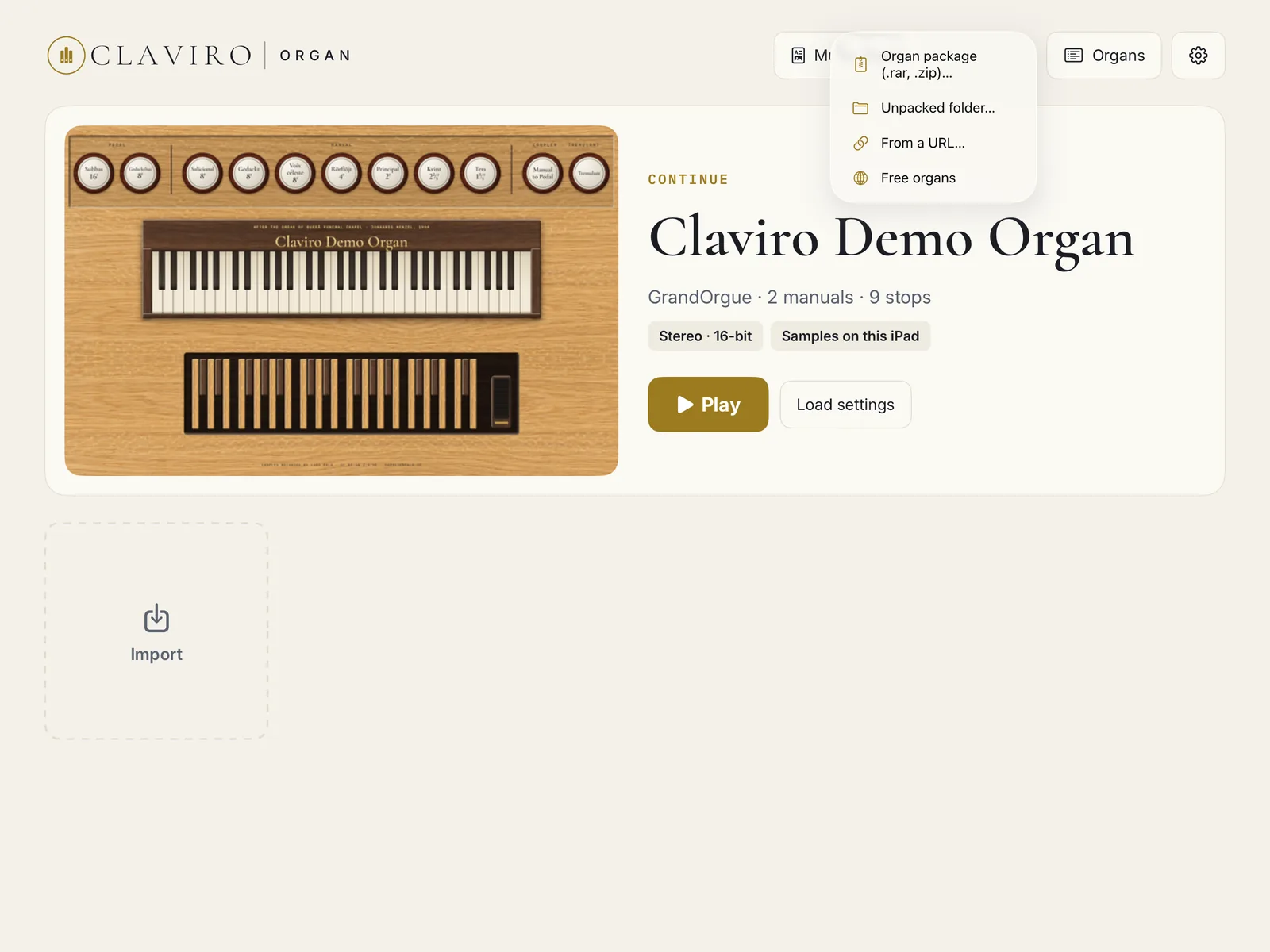
.rar,.zipor.orguefile. On Home, tap Import › Organ package (.rar, .zip)… and choose the file. The app unpacks it and shows the import sheet: what the organ contains, what it will take on your iPad, and whether your plan includes it. Tap Import. The first load prepares the organ and takes a while; after that it opens quickly. No set yet? Import › Free organs lists free ones on their makers' websites. Importing organs -
Connect a keyboard
Plug a class-compliant USB MIDI keyboard into the iPad, with an adapter if yours needs one; there is nothing to set up. To pair a Bluetooth MIDI keyboard, go to Settings › MIDI Input › Bluetooth MIDI Devices… At the bottom left of the console, the lit routing button, 1 at first, shows that your keyboard plays Manual I. MIDI setup
New in 1.1
- Claviro Organ now speaks Spanish: set your iPad to Spanish and the whole app follows.
- Large organs now hold up at full organ, without cracks. Before and after
- An organ you've opened before reopens faster.
- One record button takes the audio, reverb included, and the MIDI together, to share or AirDrop. Recording Cathedral
- Your own crescendo programs, and the crescendo in the combination bar. Crescendo programs Cathedral
- Previous and next memory buttons, which you can assign to a MIDI pedal or button. Memory steps
- The interface fits each iPad's size.
- More Hauptwerk and GrandOrgue sets play complete: switch-wired stops, recorded tremulants, Zimbelstern and bells, chained couplers, reversibles and borrowed stops.
- Piotr Grabowski's Lędziny joins the free organs; its GrandOrgue version plays on the Free plan, in mono.
- Fixes: on-screen keys respond at once on iPadOS 27; keys play where the set's author drew them; a take's MIDI stays in time with its audio; Hauptwerk packages with several definitions import whole; clearer messages when an external drive doesn't respond.
What you need
An iPad
Claviro Organ runs on iPad with iPadOS 16 or later, in either orientation, and in Split View, Slide Over and Stage Manager. 8 GB of memory is recommended for large sample sets. While the app is in front, the screen stays awake, so it won't dim in the middle of a piece.
Storage
A large sample set can take 5 to 15 GB for its samples, plus 2 to 10 GB for the sample cache the app builds from them. While a package is being unpacked, the app needs room for both the package and what comes out of it, roughly twice the package's size. The import sheet shows how much the organ will take and how much is free before anything is copied.
With Cathedral, the samples can stay on a USB-C drive, or be removed from the iPad once the cache is built; see Samples on an external drive. Some iPads' USB-C ports run at USB 2 speed: drives work, but reading from them is slow.
Sound
There is no output setting in the app. The sound goes wherever iPadOS sends it: the built-in speakers, headphones, a USB-C audio interface, Bluetooth or AirPlay. The output is a stereo pair. For playing, wired headphones or an audio interface are the better choice, since Bluetooth adds a delay between key and sound that you will feel.
The organ keeps sounding when you switch to another app in Split View or Slide Over.
MIDI keyboards and pedals, if you have them
No hardware is needed: the on-screen keyboard plays every division. For real playing, Claviro Organ works with class-compliant USB MIDI keyboards, pedalboards and whole consoles, and with Bluetooth MIDI devices. It listens to every connected device unless you choose one. See MIDI setup and MIDI learn.
Internet, accounts and privacy
The app needs the internet only for downloads you start and for App Store purchases. It has no accounts, no analytics and no ads; your organs, combinations, recordings and scores stay on your iPad. Claviro Organ is in English, and in Spanish when your iPad is set to Spanish.
Plans
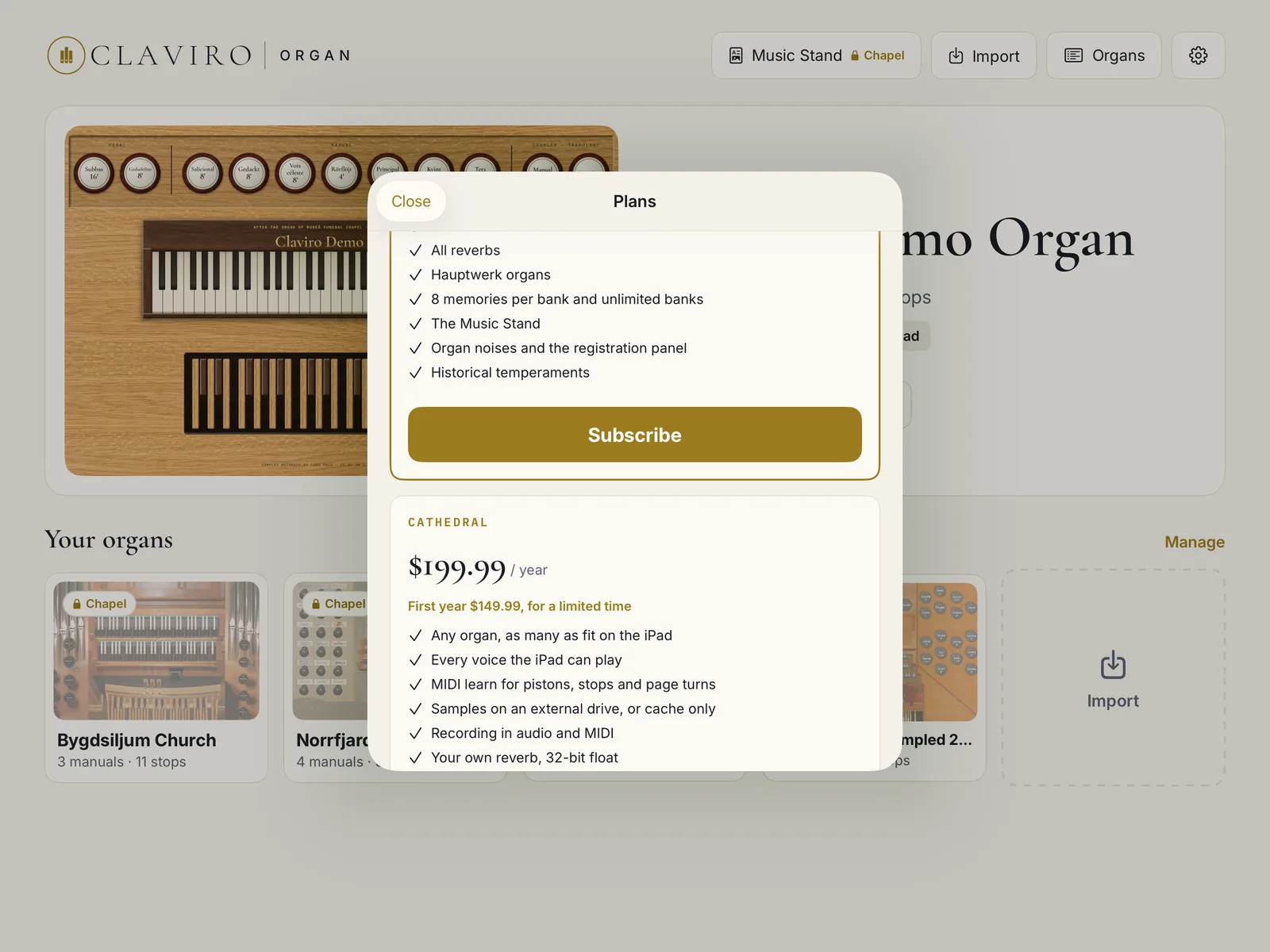
Claviro Organ is free to download and to play. Two subscriptions, Chapel and Cathedral, open larger organs and more tools; Cathedral includes everything in Chapel. In this guide, a feature that needs one carries a small badge: Chapel or Cathedral.
Every plan plays the organ as its builder designed it: couplers, tremulants, crescendo and swell, the organ's own pistons, transposition, and MIDI keyboards and pedal on any channel are never limited.
What each plan includes
| Feature | Free | Chapel | Cathedral |
|---|---|---|---|
| Price | Free | $9.99 a month or $99.99 a year | $19.99 a month or $199.99 a year |
| Organs | |||
| The demo organ | Full, in stereo | Full, in stereo | Full, in stereo |
| Your own organs, besides the demo | 1 | 3 | As many as fit |
| Largest organ (its sample cache) | 500 MB | 2 GB | Any size |
| GrandOrgue organs | Yes | Yes | Yes |
| Hauptwerk organs | No | Yes | Yes |
| Stereo | Demo only; your organs play in mono | Yes | Yes |
| Samples on an external drive, or removed once cached | No | No | Yes |
| 32-bit float cache | No | No | Yes |
| Sound | |||
| Voices at once | 50 | 150 | Your setting, up to 4,096 |
| Reverbs | Bureå Church | Adds York Minster | Adds your own impulse response |
| Temperaments | Equal | Six historical ones | Six historical ones |
| Organ noises: blower, ambience, action | No | Yes | Yes |
| Recording in audio and MIDI | No | No | Yes |
| Registration and reading | |||
| Memories per bank | 3 of 8 | 8 | 8 |
| Combination banks per organ | 1 | Unlimited | Unlimited |
| Your own crescendo programs | No | No | Yes |
| Registration panel for narrow windows | No | Yes | Yes |
| Music Stand | No | Yes | Yes |
| MIDI learn: memories, memory steps, stops, couplers, tremulants, crescendo pedal, page turns | No | No | Yes |
| Couplers, tremulants, crescendo and swell, the organ's pistons, transposition, MIDI on any channel | Yes | Yes | Yes |
Prices are in US dollars; the Plans screen shows them in your App Store's currency. The size limit applies to the organ's sample cache as it loads on your plan, in mono on Free, and the import sheet shows it before you import. For a limited time, if you haven't used an introductory offer for Claviro Organ before, the first year of Cathedral Annual is $149.99; the Plans screen shows the offer when it applies to you. There is no free trial and no lifetime purchase.
Subscribing
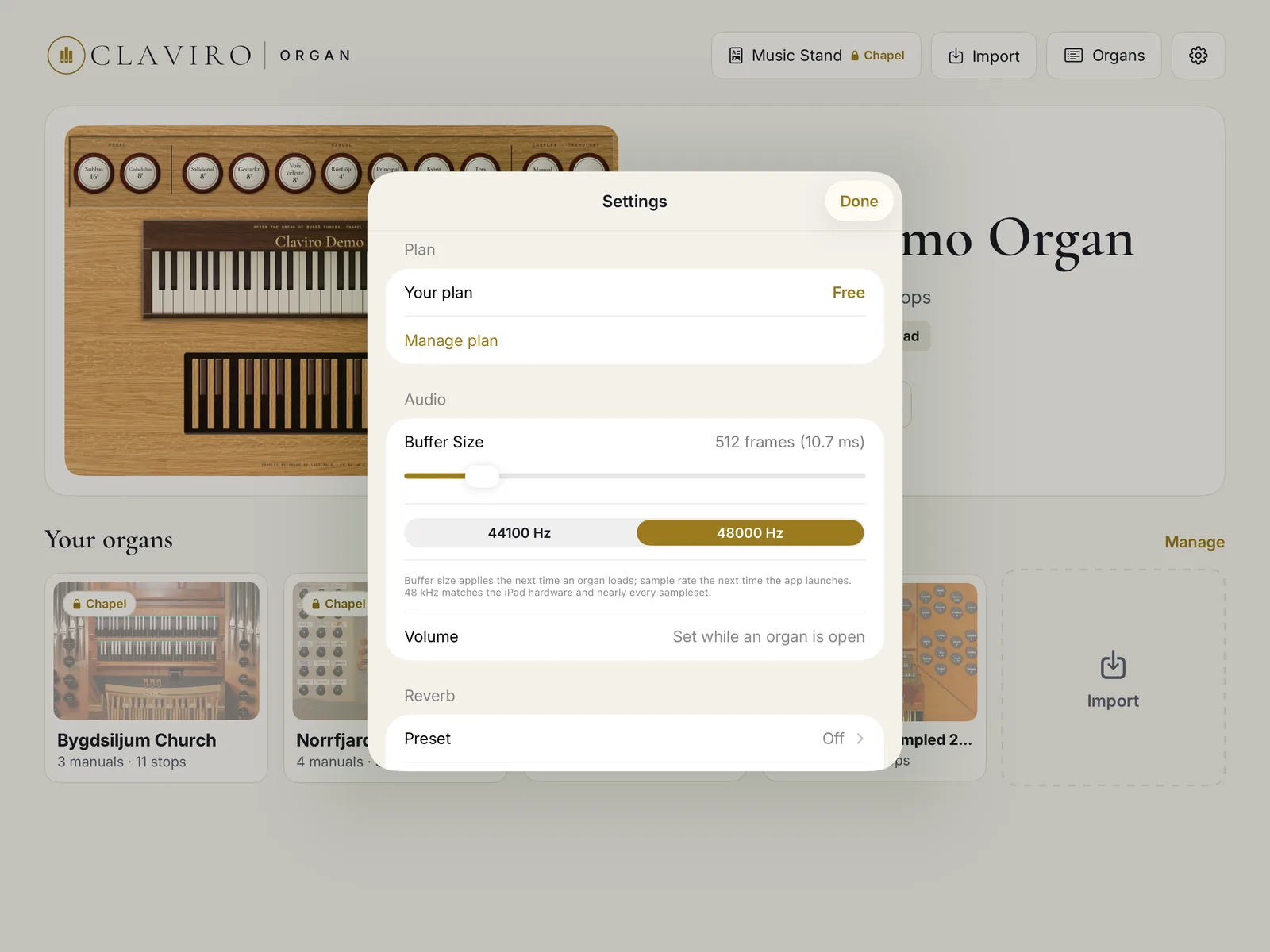
Open the plans from Settings › Plan › Manage plan, or by tapping anything that shows a gold lock: the Plans screen then says which plan that control needs. Choose Monthly or Annual under Billing, then tap Subscribe on a plan's card. Payment goes through your Apple Account. Once the plan you needed is bought, the Plans screen closes and you are back where you were.
Restoring, changing or cancelling
- On a new iPad, or after reinstalling: Settings › Plan › Manage plan › Restore Purchases. The app names the plan it restored, or says there is no subscription on this Apple Account.
- To change plans: on the Plans screen, the other plan's card offers Switch to Cathedral or Switch to Chapel. Moving up takes effect at once; moving down, at the next renewal.
- To cancel: Settings › Plan › Manage subscription opens Apple's subscription page, the same one as Settings › your name › Subscriptions in iPadOS. Subscriptions renew automatically until you cancel them, at least 24 hours before the end of the period.
When something is above your plan
Nothing is ever deleted. An organ above your plan stays on the iPad with a gold lock and an Open with Chapel or Open with Cathedral button, and opens again with that plan. If you have more organs than your plan keeps, the ones you brought in first keep playing.
The same holds for everything else. Memories 4 to 8 and extra banks are kept, and open again with Chapel. Learned MIDI controls are kept and work again with Cathedral; until then those messages pass through as ordinary MIDI, and a banner says so once per session. A reverb choice is kept and plays again with its plan. When a subscription ends, the app returns to the Free limits without deleting anything.
When the plan's voice limit is what holds the sound back, the OUT meter in the console's top bar shows a lock and “50 max” (or “150 max”); tap it to see the plans. Your own polyphony setting is kept.
Importing organs
Claviro Organ opens GrandOrgue sets and unencrypted Hauptwerk sets as their makers ship them. You don't need a computer to unpack or convert them. Before anything is copied, the import sheet shows what the organ contains, what it will take on your iPad, and what your plan allows.
What it opens
- GrandOrgue: an organ definition (
.organ) with its samples, or a GrandOrgue package (.orgue). - Hauptwerk Chapel: organ definitions (
.Organ_Hauptwerk_xml), and the component packages producers ship, such as….CompPkg.Hauptwerk.rar. - Packages:
.rar(solid or not),.zipand.orgue. The app recognizes a file by its contents, not its name. Samples compressed with WavPack are read as they are.
When a package holds more than one organ definition, a Version picker appears at the top of the import sheet. You can import another version later from the same package.
Copy-protected (encrypted) Hauptwerk sets can't be opened; they are licensed to Hauptwerk itself. Free and unencrypted Hauptwerk sets play, and so do GrandOrgue sets. A RAR archive split into parts (.part1.rar, .part2.rar…), an archive with a password, and a .7z archive have to be unpacked on a computer first; then import the folder.
Ways to bring an organ in
Every import starts from Import in Home's top bar, or from the dashed Import tile after your organs:
- Organ package (.rar, .zip)…
- A package file in the Files app: on the iPad, in iCloud Drive, or on a USB-C drive. The app unpacks it and opens the import sheet. Use this for a set as its maker ships it.
- Unpacked folder…
- A set already unpacked, for example on a USB-C drive. Choose the set's folder, the one that holds its organ definition.
- From a URL…
- A direct link to a package on the web.
- Free organs
- A short list of free sample sets, with links to their makers' websites.
AirDrop and Open in… bring PDFs into Claviro Organ, not organs. To import a package someone sends you, save it to Files first, then use Import.
From a URL
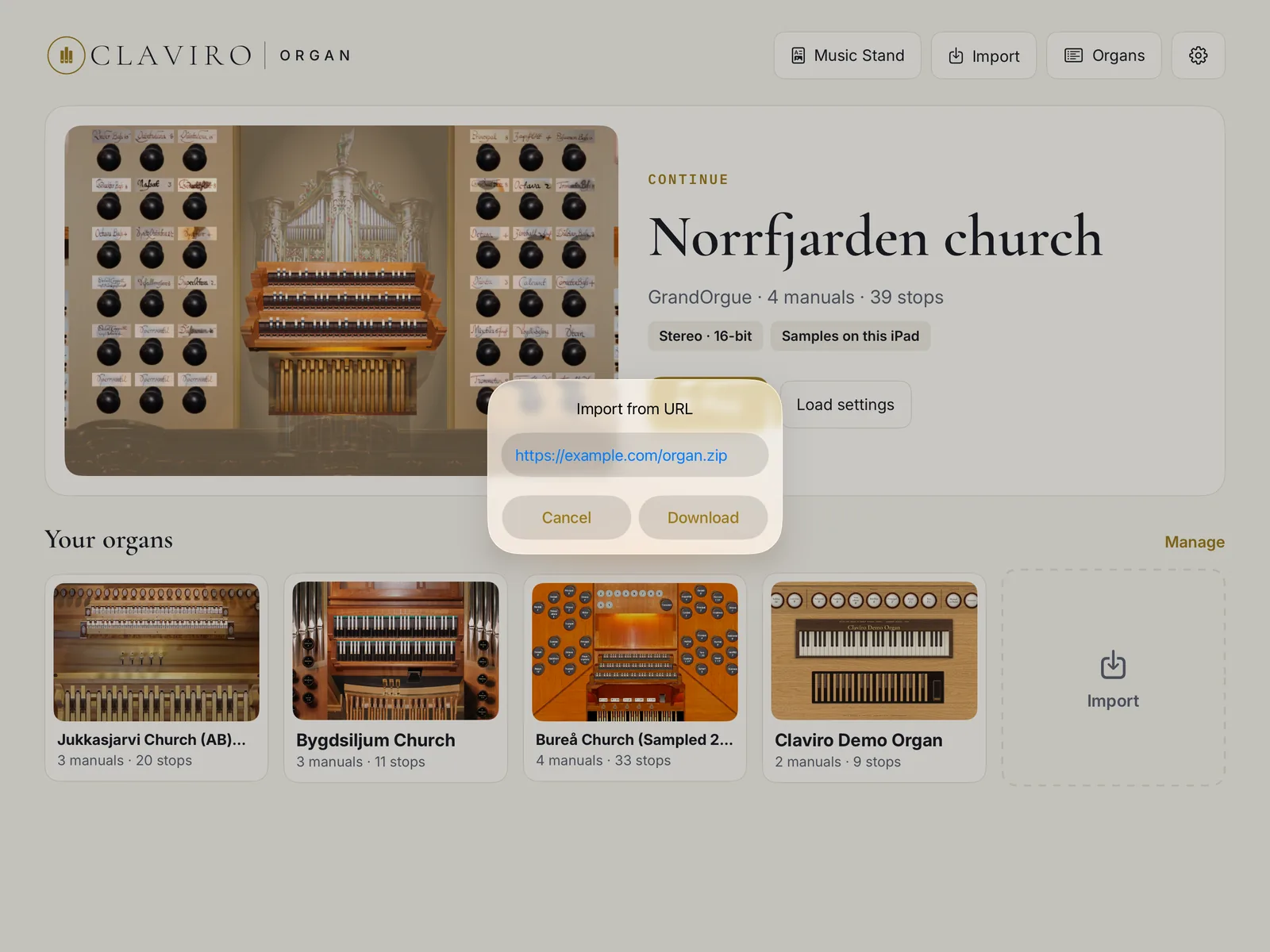
Import › From a URL… asks for a link under Import from URL. Paste a direct link to the package and tap Download. Only secure links, starting with https://, can be downloaded; iPadOS blocks plain http. The package downloads and unpacks, and the import sheet opens. The link must lead to the file itself: from a download page, download the package in Safari and import it from Files. If your plan's count of organs is already reached, the plans open first.
Free organs
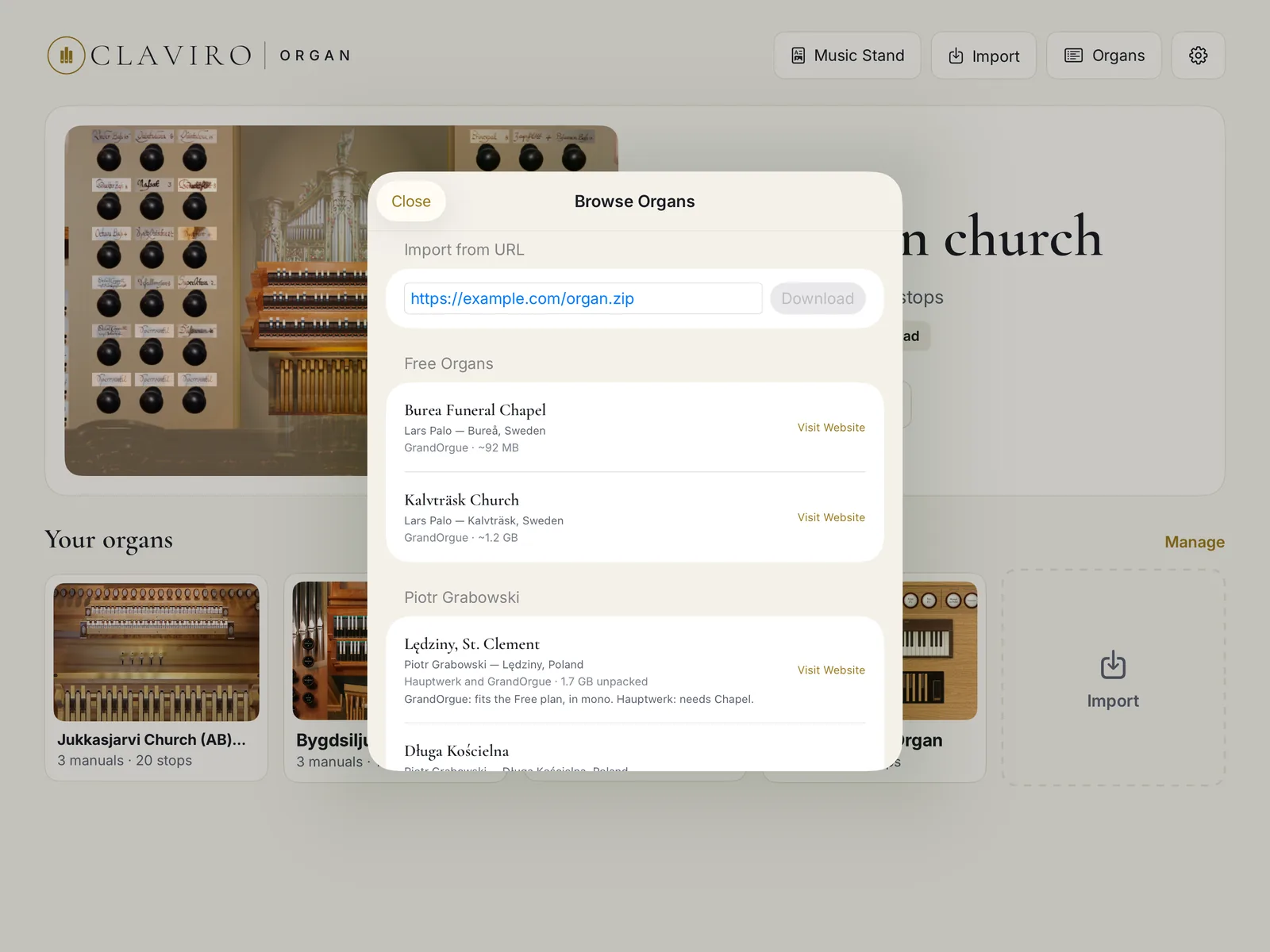
Import › Free organs opens Browse Organs, a short list of sets their makers give away. Each row's Visit Website opens the maker's page, where you download the set; then import it from Files. The same sheet has an Import from URL field at the top.
- Lars Palo: Bureå Funeral Chapel (about 92 MB), the original set behind the demo organ, and Kalvträsk Church (about 1.2 GB), both for GrandOrgue.
- Piotr Grabowski: Lędziny St. Clement, Długa Kościelna, Skrzatusz and Szczecinek, each for Hauptwerk and GrandOrgue. Lędziny's GrandOrgue version plays on the Free plan, in mono; its Hauptwerk version needs Chapel.
Piotr Grabowski supports his sets in Hauptwerk and GrandOrgue. For help with them in Claviro Organ, write to us at support@claviromusic.com.
Copying folders with the Files app or a Mac
You can also place unpacked organ folders straight into the app's own storage: on the iPad, in Files › On My iPad › Claviro Organ; from a Mac, in the Finder, with the iPad selected, under Files. When the app next starts, it finds the organ folders there and adds them to Home. They skip the import sheet: the first time you open one, its cache is built with your default load settings.
The import sheet
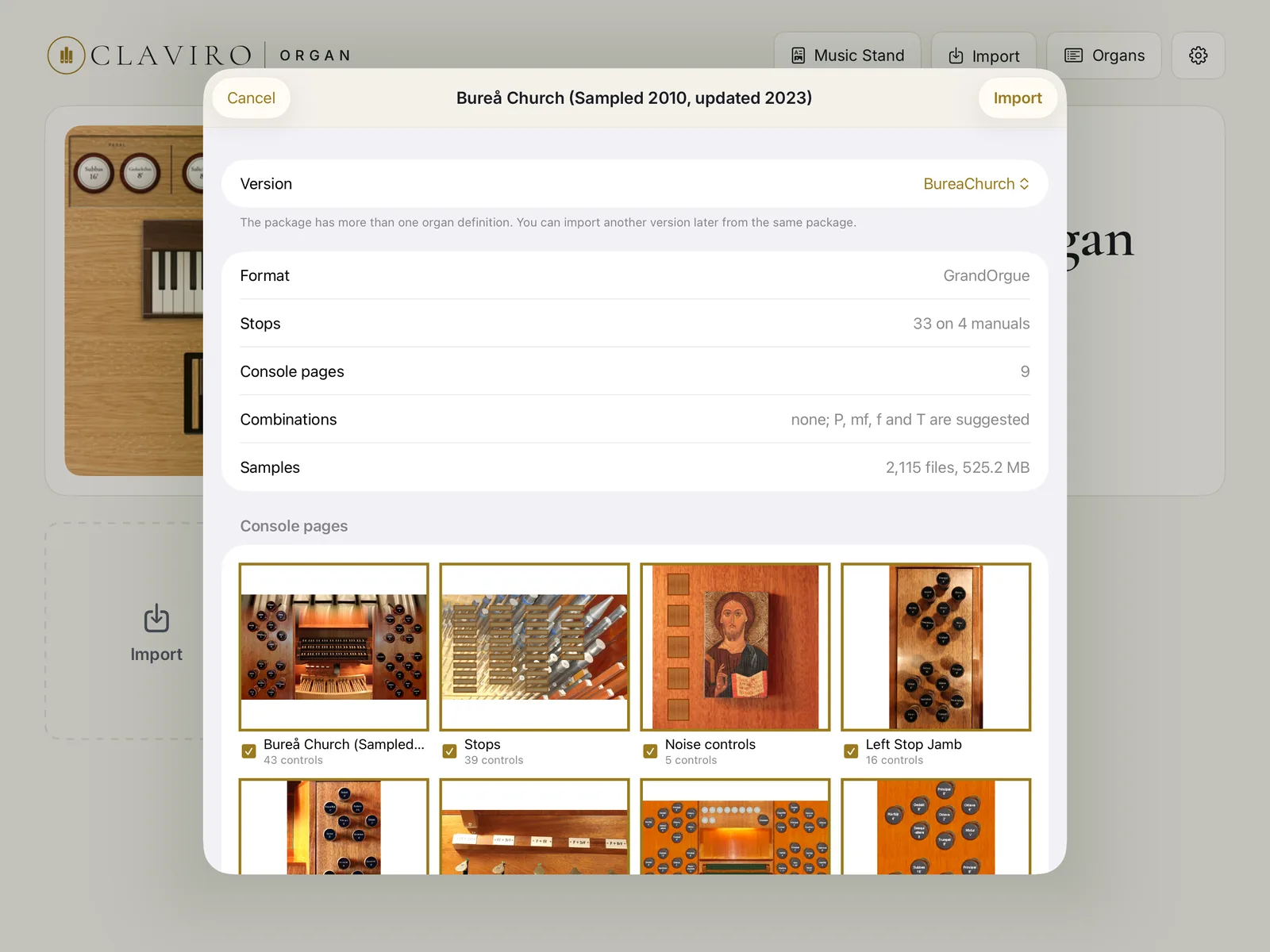
Before anything is copied, the import sheet shows what you are about to bring in. From the top:
- Format, Stops, Console pages, Combinations, Samples
- Hauptwerk or GrandOrgue; how many stops on how many manuals; how many console pages it has, or “none (stop list)”; the organ's own combinations, or “none; P, mf, f and T are suggested”; and the number and size of the sample files. Orange lines warn of sample files that are missing, whose pipes would be silent, or of an organ from the same folder already on the iPad, which will be replaced with its saved combinations kept.
- Your plan
- Shown only when the organ is above your plan: what it needs, and See plans. When Mono alone would bring it within the plan, the sheet says so.
- Console pages
- A thumbnail of each page, with the number of working controls on it. Pages with working controls are ticked; untick any you don't want on the console. You can change them later in Manage.
- Samples Cathedral
- When you import an unpacked folder: Copy to the iPad, or Leave on the drive. See Samples on an external drive.
- Cache
- Channels, Stereo or Mono, with the size of each and whether it fits; and Bit depth. Explained just below.
- Will take on the iPad, Free on the iPad
- The space the import will use, and what you have. If it isn't enough, Import is dimmed and the sheet suggests what to change.
Tap Import to begin. If the organ is above your plan, Import opens the plans instead, and nothing is copied.
Stereo or mono, 16-bit or 32-bit
Claviro Organ doesn't play a set's sample files as they are. On the first load it converts them once into a sample cache, laid out to be played straight from memory. The Cache section of the import sheet decides how that cache is built, and tells you, for each choice, how it fits on this iPad:
- fits whole, in green: the whole cache fits in memory, so any registration plays, up to full organ.
- stop by stop, in orange: the cache is larger than the memory the iPad can give it. The organ still plays, loading each stop as you draw it, but a large tutti may not fit.
The sheet starts on stereo if the stereo cache fits whole, otherwise on mono if that fits.
16-bit is the quality of nearly every organ's samples. 32-bit float Cathedral doubles the cache with no audible gain; choose it only for a set whose samples are 32-bit float.
On Free, organs load in mono; stereo comes with Chapel. The demo organ plays in stereo on every plan. You can change all of this later in the organ's Load settings; a change of channels or bit depth rebuilds the cache the next time the organ opens.
The first load
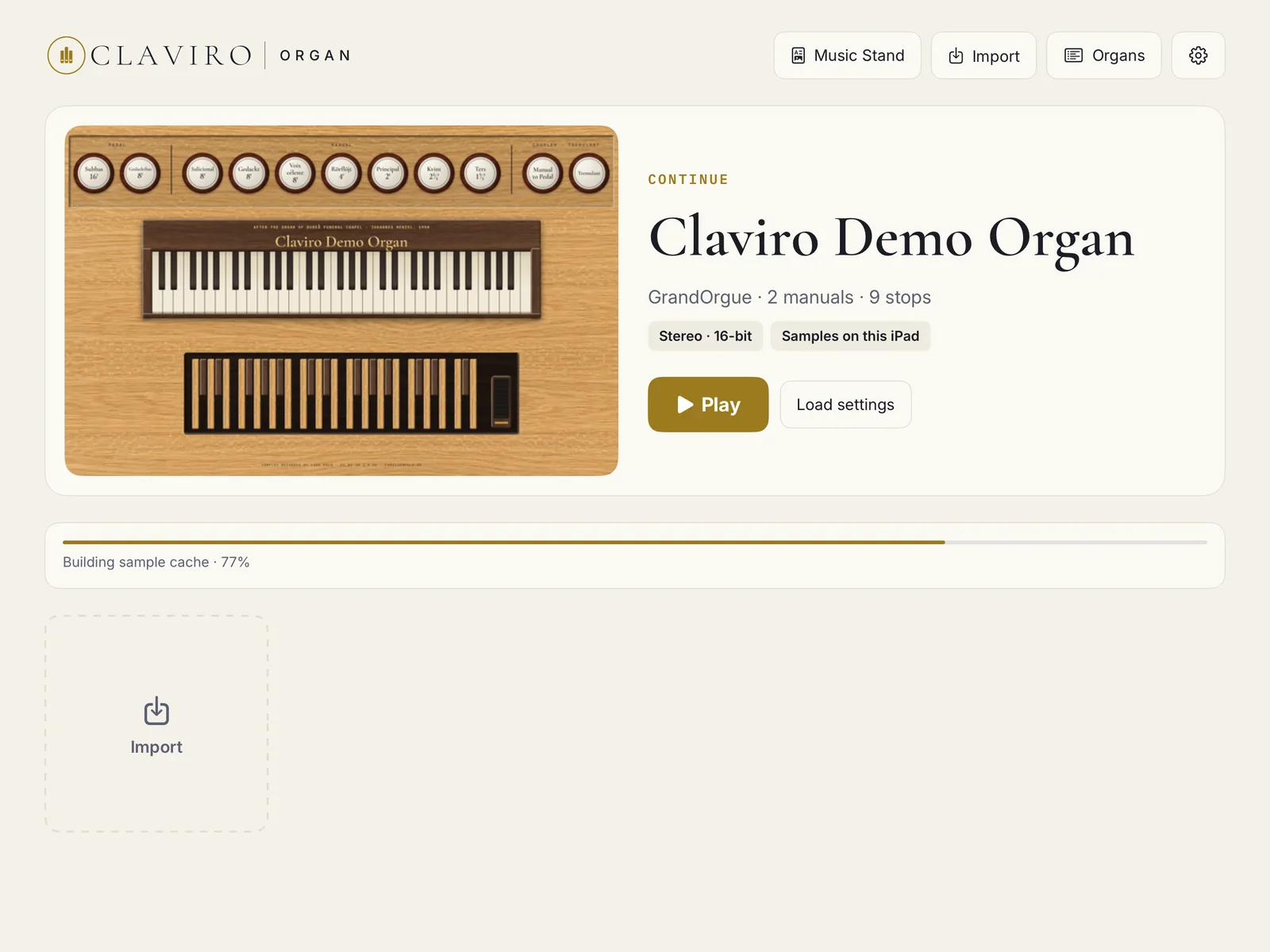
After Import, Home shows the organ loading, with a progress bar and the stage it's in, such as “Parsing organ definition”, “Building sample cache” and “Loading pipe samples”. The first load reads every sample file, decodes it and writes the cache, which for a large set takes minutes. Later loads skip all of that and take the cache straight into memory, so an organ you've opened before reopens faster.
If an import or a download fails, the reason stays on Home until you tap OK.
Patches and add-ons
Some producers ship updates or extra samples as a separate package. Import it the same way. When the app sees that a package completes an organ already on your iPad, the sheet says Patch or add-on, and its button reads Add to followed by the organ's name. The package's files go into the organ's folder, replacing those of the same name; the organ keeps its combinations and settings, and its cache is rebuilt the next time you open it. A patch doesn't count as another organ on your plan.
An add-on that brings an organ definition of its own, such as the additional sustain samples of Długa Kościelna for Hauptwerk, isn't supported yet. The sheet says so, and Cancel removes the unpacked package.
Samples on an external drive Cathedral
A large set's samples can stay where they are. Import the unpacked set from a USB-C drive with Unpacked folder…, and in the sheet's Samples section choose Leave on the drive. The iPad keeps only the definition, the images and the cache. The drive must be connected the first time you open the organ, while the cache is built; after that the organ plays without it. These choices stay fixed: changing them later needs the drive.
You can also remove the samples of an organ you copied to the iPad, once its cache is built: Organs › the organ › Manage › Remove Samples from iPad, or for every organ at once, in Settings › Storage. The organ keeps playing from its cache. Keep the original set on your Mac or a drive: you can no longer change its bit depth or channels, and if an app update ever needs the cache rebuilt, you will re-import it from the original folder.
Managing your organs
Organs, in Home's top bar, lists every organ on the iPad, with a lock on any above your plan. Tap one for three tabs, which you can also reach by touching and holding an organ's card on Home:
- Info
- Format, manuals, stops, where its samples are, and Load Organ.
- Load settings
- How it loads into memory: see Load settings.
- Manage
- Its storage (organ files, sample cache, samples); Console pages, to choose again which pages the console shows; its details; and under DANGER ZONE, Rebuild Cache, which builds the cache again from the samples and helps when an organ misbehaves, Delete Cache, Remove Samples from iPad Cathedral, and Remove Organ from Device, which deletes the organ's files, cache and saved combinations and can't be undone.
Playing
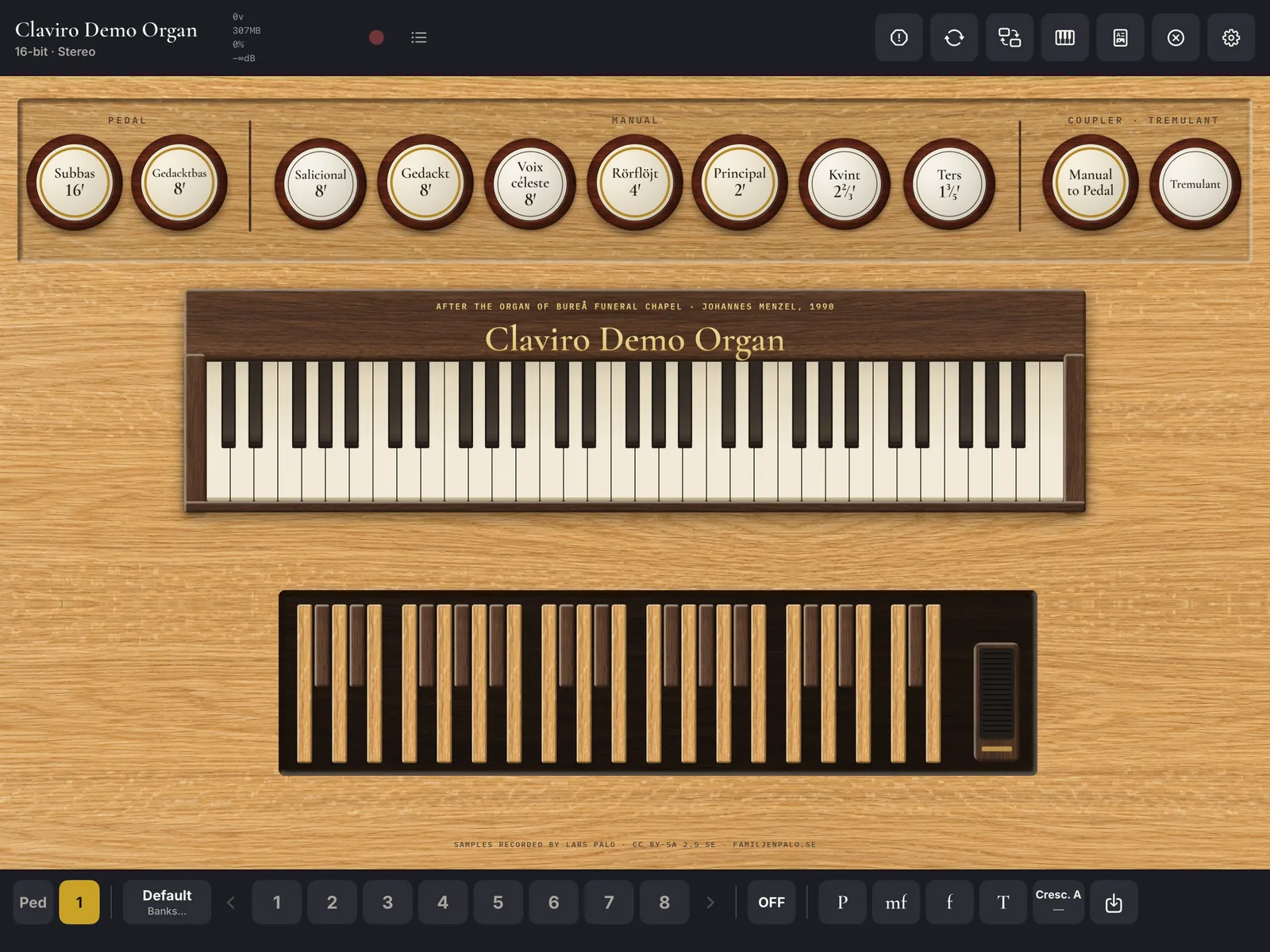
The Claviro Demo Organ
The demo organ is Lars Palo's recording of the organ of Bureå Funeral Chapel in Sweden, built by Johannes Menzel Orgelbyggeri in 1990, in his extended version. Claviro adapted it with one knob for each divided stop and a console of our own. It plays fully, in stereo, on every plan, and doesn't count among your plan's organs.
- Manual, C–c4, 61 keys
- Salicional 8′, Gedackt 8′, Voix céleste 8′, Rörflöjt 4′, Principal 2′, Kvint 2⅔′, Ters 1⅗′; Tremulant; Swell
- Pedal, C–g1, 32 keys
- Subbas 16′, Gedacktbas 8′; Manual to Pedal
The Kvint, the Ters, the Gedacktbas and the notes above the chapel's own compass are Lars Palo's extension, made from the organ's own pipes. If you remove the demo organ, it stays removed.
Home
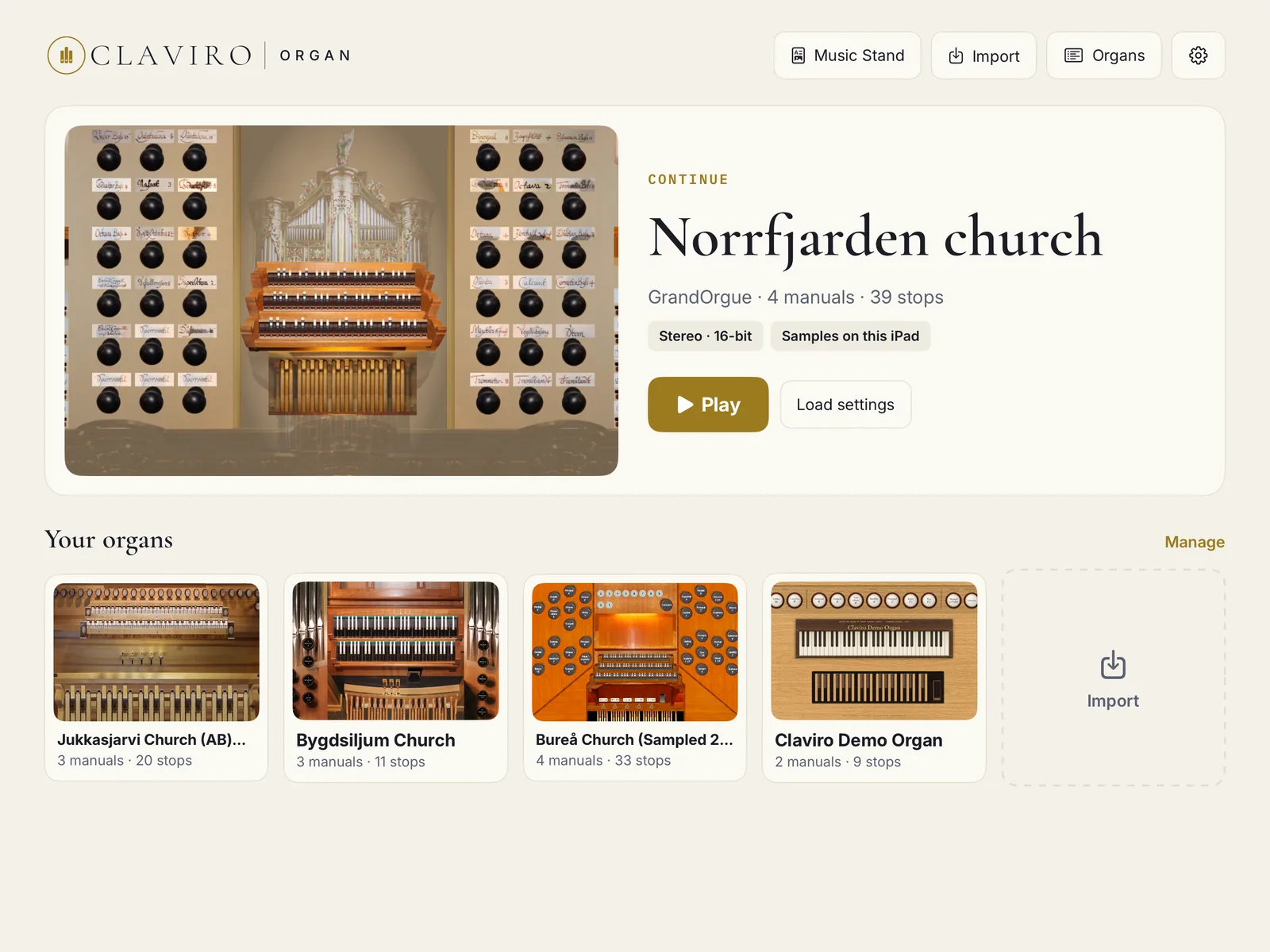
Home's top bar holds Music Stand Chapel, Import, Organs and the gear for Settings; in a narrow window they show as icons. Below, CONTINUE shows the organ you played last, what it loads with (“Stereo · 16-bit”, for example) and where its samples are, with Play and Load settings. Your other organs follow under Your organs. Tap a card to open the organ; touch and hold it for Info, Load settings and Manage.
The console
The console fills the screen: the organ's console pages, a toolbar along the top, and the combination bar along the bottom. The toolbar, from the left:
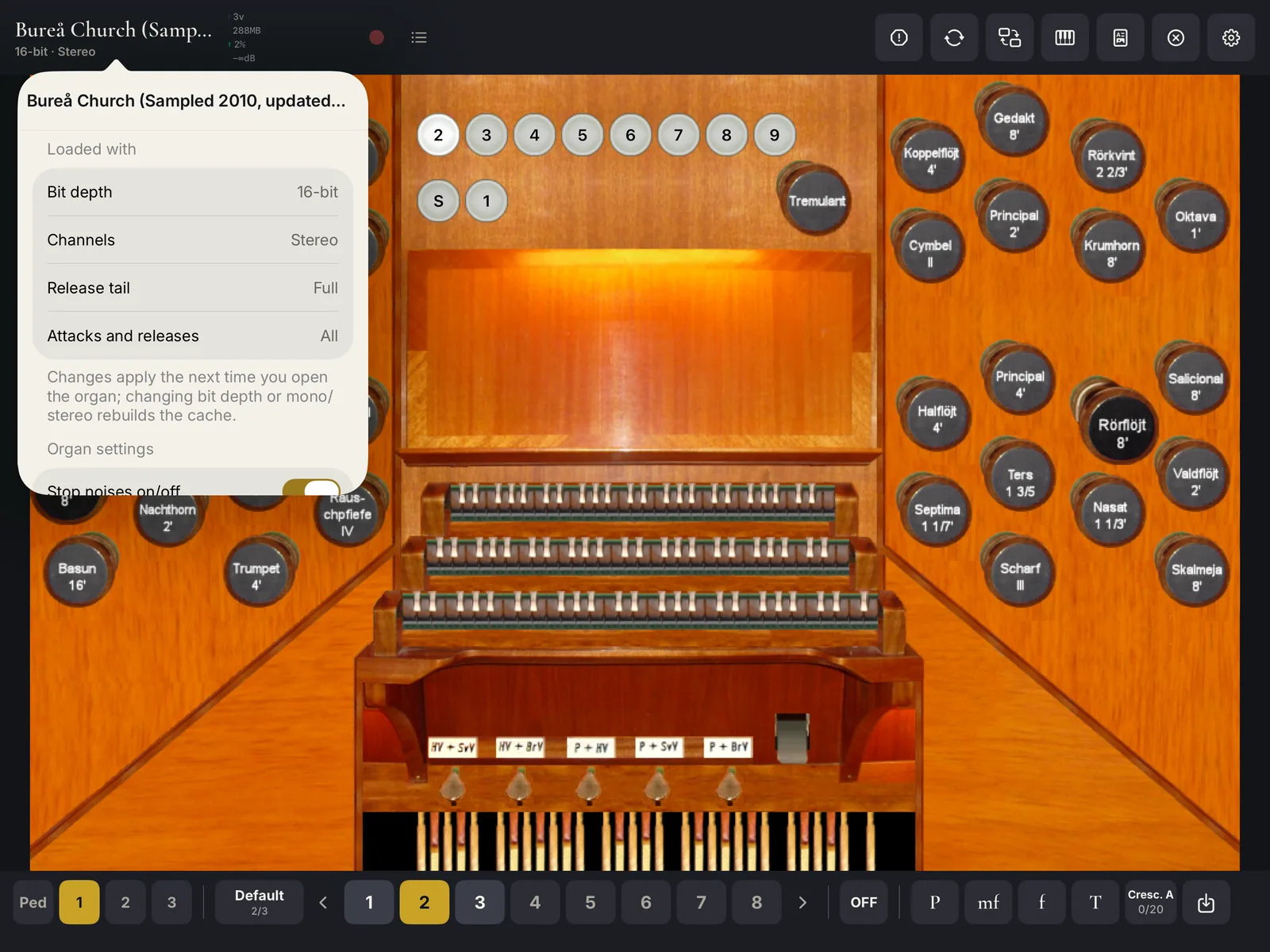
- The organ's name, with what it loaded with below it, such as “16-bit · Stereo”. Tap it for the organ's details, its own settings and its noises.
- The status strip: a green keyboard icon when a MIDI device is connected, then four meters: the voices sounding, the memory in use, the processor load, and OUT, the output's peak level in decibels.
- The red record button and the list of recordings Cathedral.
- Panic silences every sounding note. Reconnect restarts audio and MIDI, for when a console's USB audio or MIDI has gone quiet. View turns to the next console page, on organs with more than one. Keyboard shows the on-screen keys. Music Stand Chapel opens your scores. Exit closes the organ and returns to Home. Settings opens the settings.
The voices meter turns yellow past half the voices available and red past 80 percent. The OUT meter is green while the sound is clean, orange while the safety limiter holds a loud chord down, and red when the mix would have clipped; see The safety limiter.
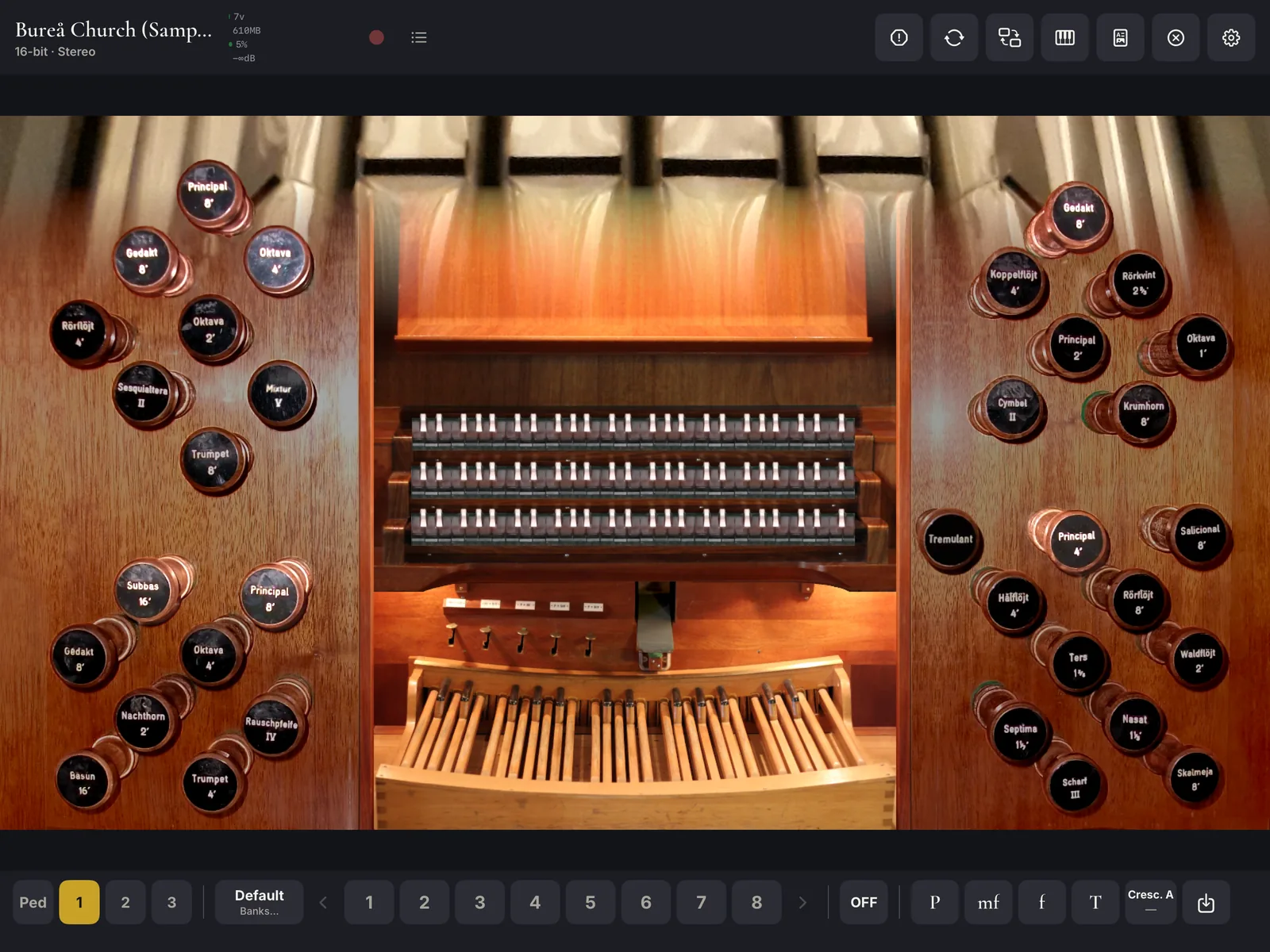
Console pages and drawknobs
Organs that come with pictures show their own console, page by page: the stop jambs, the keydesk, sometimes the case. Tap a drawknob, tab or piston to draw or retire it; it changes to its drawn picture, as on the set's original console. Keys drawn on a page play when touched. Swell pedals drawn on a page move when you drag them up and down, and so does a drawn crescendo pedal.
View in the toolbar turns to the next page. The pages shown are the ones you ticked at import; change them in Manage › Console pages. Some organs, the demo among them, have two arrangements of their console, one for landscape and one for portrait, and the app switches between them as you turn the iPad.
A knob shown faded is one a crescendo has drawn; see The crescendo. A control your plan doesn't include, such as an organ noise knob on Free, opens the plans instead.
An organ without console pictures shows a stop list instead, by division, with the tremulants at the end. A stop's dot turns gold when it is drawn.
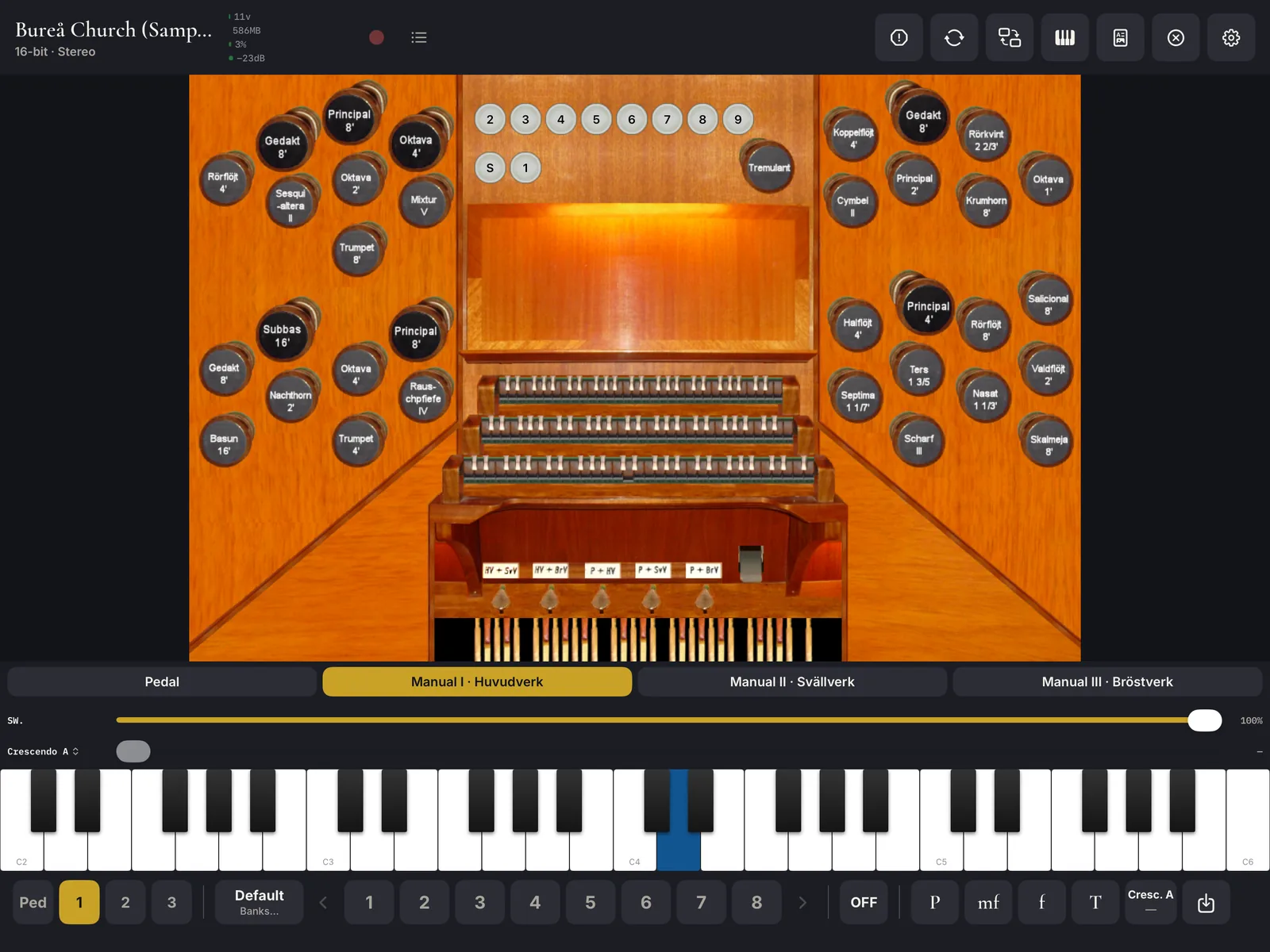
The on-screen keyboard
Keyboard in the toolbar opens four octaves of keys above the combination bar, from the low C. Several fingers play at once. Above the keys, a row of buttons chooses the division they play: Pedal, Manual I, Manual II and so on, with the division's own name where the set gives one, as in “Manual I · Rückpositief”. The choice is remembered.
Between those buttons and the keys sit a slider for each swell box the organ has, and the crescendo control when there is one.
Couplers, tremulants and swell
Couplers and tremulants are the organ's own controls, on its console pages, and every plan plays them. Tremulants play as the set defines them, whether generated or recorded with the tremulant on. Swell boxes move with the sliders above the on-screen keys, or with the swell pedals drawn on the console. A swell box changes the volume of the pipes inside it; Hauptwerk also dulls the treble as a box closes, which Claviro Organ doesn't do yet.
Assigning couplers and tremulants to buttons on your console is MIDI learn, a Cathedral feature.
Blower, ambience and action noises Chapel
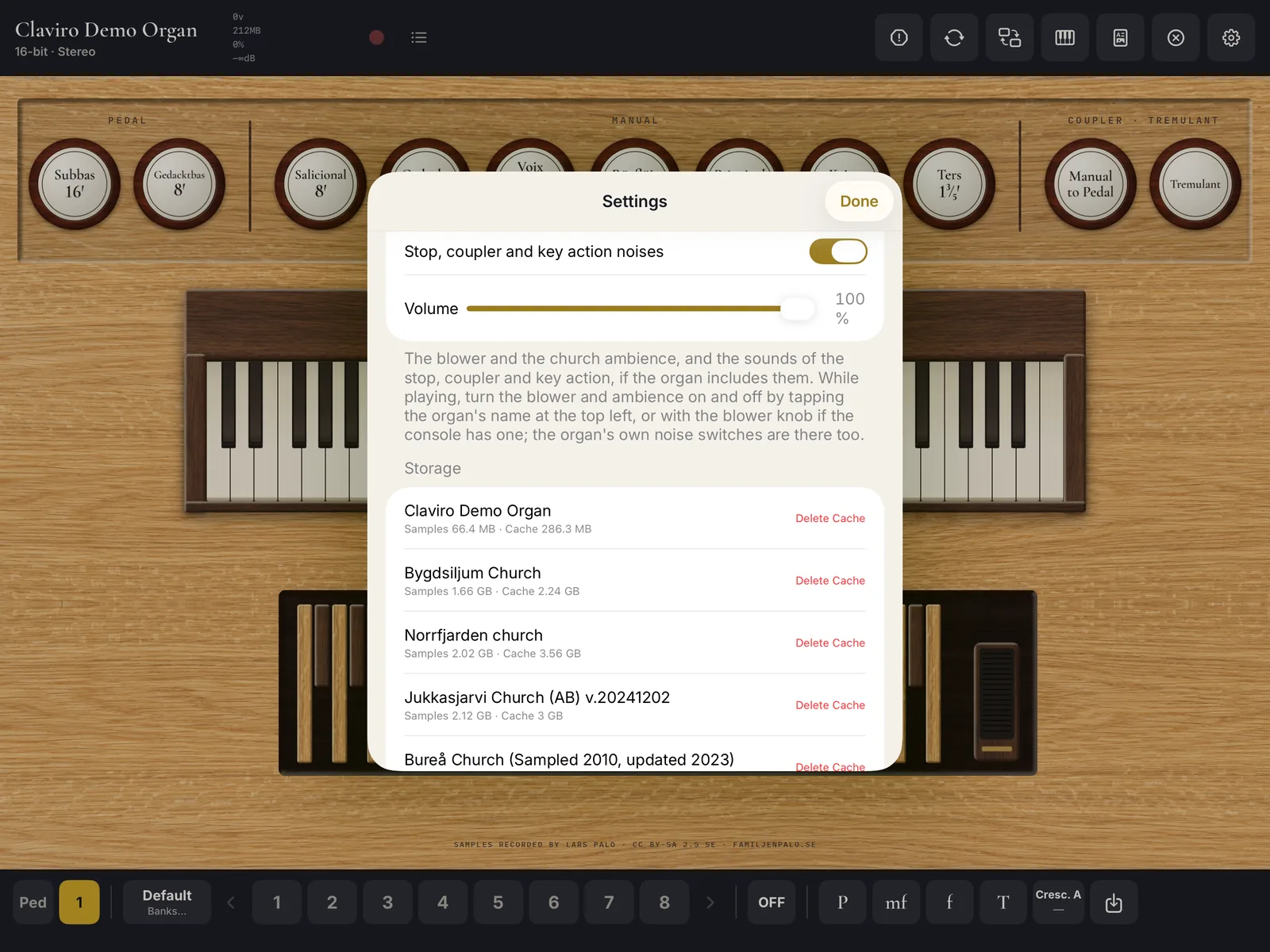
Many sets include the sounds of the building: the blower, the church's ambience, and the action of stops, couplers and keys. Settings › Organ Noises has three controls:
- Blower and ambience when opening an organ, off unless you turn it on, since at a service you rarely want them.
- Stop, coupler and key action noises, on unless you turn it off.
- Volume, the level of all of them.
While playing, tap the organ's name at the top left: under Organ noises you'll find switches such as Blower and Ambience, and under Organ settings any on/off settings the organ defines. A blower knob on the console works too. Effect knobs such as a Zimbelstern or bells are ordinary knobs on the console; some sound once and don't stay lit.
The drawstop and key-action noises of Hauptwerk sets don't play yet; their blower and ambience do.
Recording Cathedral
The red record button in the toolbar records a take: the audio exactly as you hear it, reverb included, and the MIDI of what you played, together. Tap it again to stop. Recording Complete shows the take's length and the MIDI events captured; Save keeps it and Discard throws it away. The list button beside it opens Recordings, where you can play a take and share its audio or its MIDI, by AirDrop or to any app. Takes are also in the Files app, named after the organ and the time: an .m4a file for the audio and a .mid file for the MIDI. The microphone is never used.
Registration
Claviro Organ gives you the registration aids of a modern console: memories in banks, which you can step through in order; a general cancel; the organ's own pistons; and a crescendo, which with Cathedral you can program yourself.
The combination bar
The bar along the bottom of the console holds, from the left:
- The routing buttons, Ped, 1, 2 and so on, one per division. Lit means your MIDI keyboard plays that division; see Which keyboard plays which division.
- The bank's name, which opens the bank manager. Below the name, Banks…, or while a memory is active, your place in the bank, such as “3/5”.
- The memories 1 to 8, between the arrows ‹ and › for the previous and next memory.
- OFF, the general cancel.
- The organ's own pistons, such as P, mf, f and T.
- The crescendo, when the organ has one or your plan has crescendo programs: its name over its stage, such as “Cresc. A” over “7/20”.
- The save button, at the right end.
In a narrow window the bar scrolls sideways.
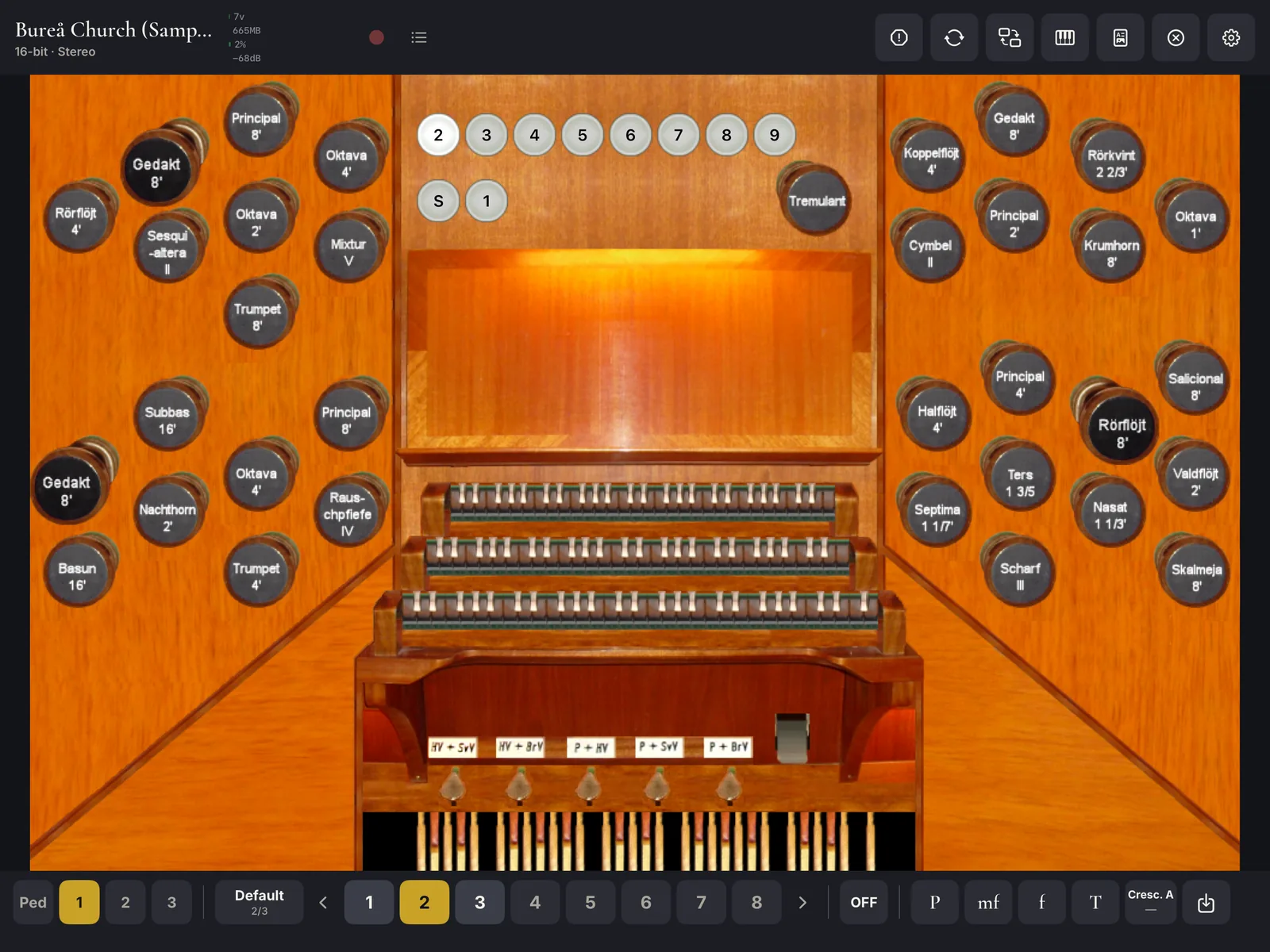
Saving and recalling a memory
Draw the registration on the console. Tap the save button at the right end of the bar: it turns red, and so do the memories. Tap the memory to store it in, and that's all; saving ends there. A memory holds the drawn stops, couplers and tremulants. Saving with nothing drawn empties the memory.
Tap a memory to recall it; the active one is lit. Stops that a crescendo has added are never saved in a memory, so a memory always brings back the registration you set.
Free opens memories 1 to 3 of a bank; the others are kept, and open with Chapel.
Banks
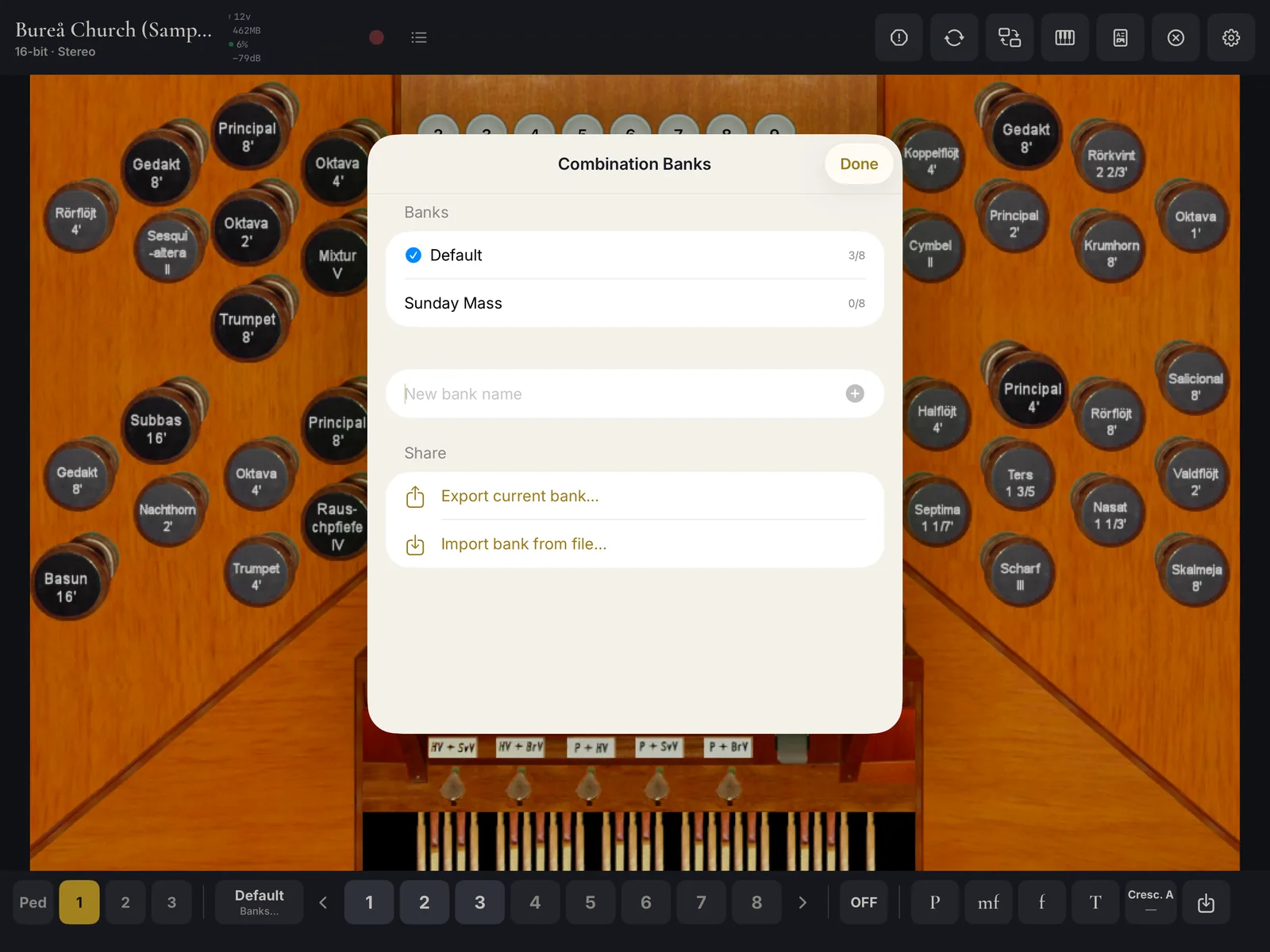
Each organ starts with one bank, named Default, of eight memories. Keep a bank per piece, per service or per player. Tap the bank's name in the bar for Combination Banks:
- Tap a bank to open it. A check marks the open one, and a count shows how many memories are filled, such as “5/8”.
- Type a name in New bank name and tap + to add a bank Chapel.
- Swipe a bank to Rename or Delete it. Deleting the last bank leaves a fresh Default.
- Under Share, Export current bank… saves the bank as a file to send or keep, and Import bank from file… brings one back as a new bank.
Banks belong to their organ: each organ has its own.
Previous and next memory
The arrows ‹ and › on either side of the memories step through your registrations in order, as a sequencer does on a pipe organ: memory to memory, and on from one bank to the next. They skip empty memories and banks with nothing saved, and stop at the first and the last rather than wrapping around. With no memory active, › goes to the open bank's first registration and ‹ to its last. Only memories and banks your plan opens count.
Under the bank's name, “3/5” means the third of five filled memories in the open bank; “–/5” means none is active.
Prepare the memories of a piece in order, and one button, or one foot pedal, takes you through it. To assign a MIDI button or pedal Cathedral, touch and hold an arrow until it shows an orange outline, then press the button; see MIDI learn.
General cancel and the organ's pistons
OFF is the general cancel: it retires everything drawn and clears the active memory. The buttons after it are the organ's own combinations, as its maker set them, labeled from their names: pp, P, mf, f, T and so on. When a set has none, the app suggests P, mf, f and T, built from the stop names. The one in use is lit.
The crescendo
Many Hauptwerk sets come with a crescendo pedal that adds stops stage by stage. It is part of the organ, and every plan plays it. With Cathedral you can also build four crescendo programs of your own, A to D, for any organ, including one without a crescendo.
Move the crescendo with any of these:
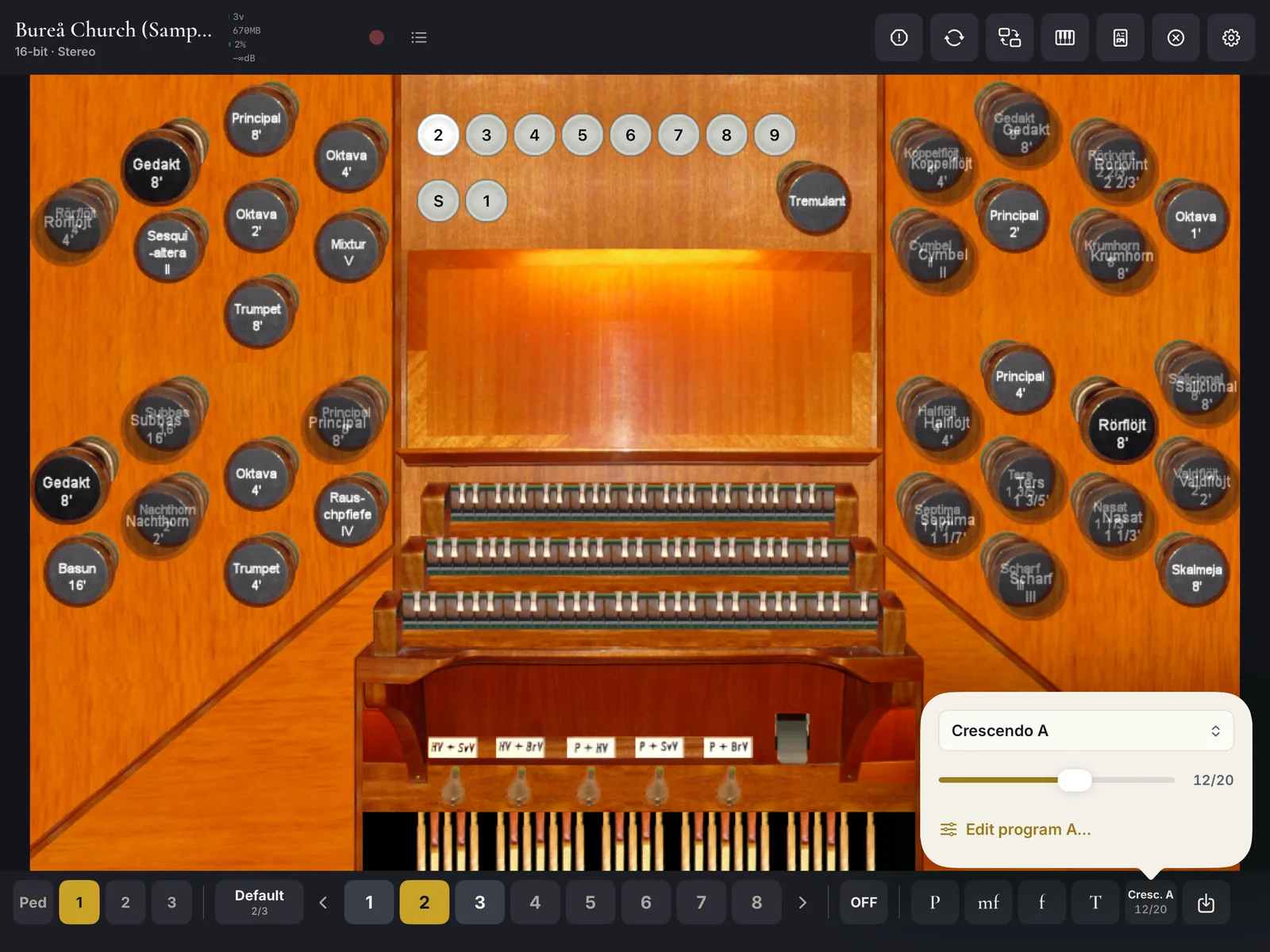
- the slider beside the on-screen keyboard, with its picker and its stage, such as “7/20”;
- the crescendo button in the combination bar, which opens the same picker and slider;
- a crescendo pedal drawn on the console;
- a MIDI expression pedal learned for it Cathedral; see A crescendo pedal.
The picker lists the organ's own crescendos by name, then Crescendo A to Crescendo D. Stops a crescendo adds show faded on the console, and closing the crescendo takes back only what it brought: what you drew by hand stays.
Building a crescendo program Cathedral
Choose a program in the picker, then Edit program A… (or B, C, D). The sheet Crescendo A opens:
- Stages sets how many steps the program has, from 10 to 40; 20 at first.
- Propose builds the stages from the organ's stops, soft to full. It asks before replacing stages you already have.
- Copy the organ's crescendo starts from the organ's own, on organs that have one.
- Each stage row shows its stops and couplers, and what it adds to the stage before. Tap a stage to open it on the console; the sheet closes. Change the registration by hand, then tap Save to stage 7 (or whichever stage it is) in the banner above the combination bar, or Cancel. While a stage is open, the crescendo holds still.
- Swipe a stage to Delete it, or to Insert after it a copy you can change.
- Remove from every stage… takes a stop, coupler or tremulant out of the whole program at once, a celeste the proposal brought in, for example.
Programs are kept with their organ. Along the pedal's travel, the stages are spaced evenly from rest to full.
In a narrow window: the registration panel Chapel
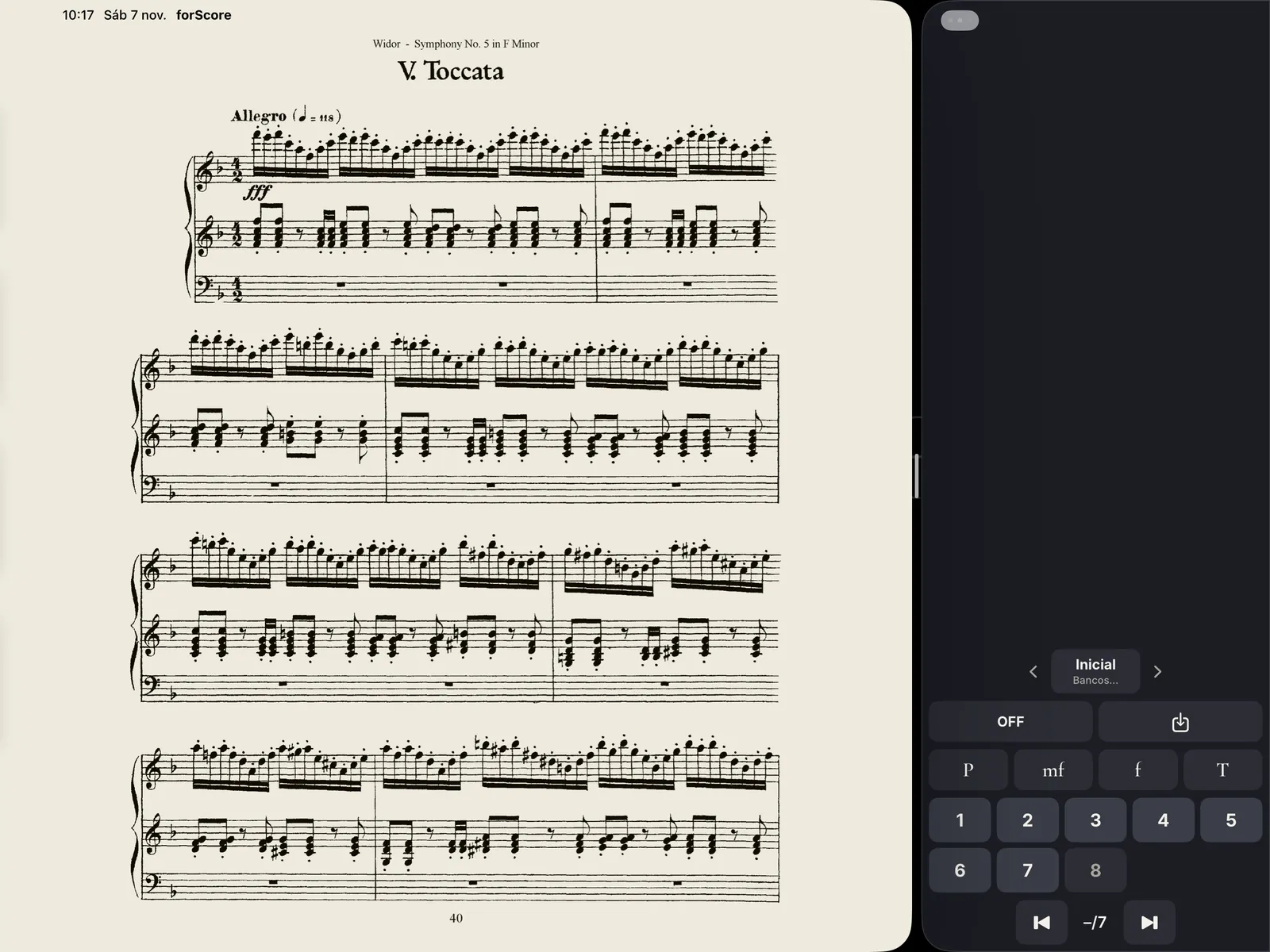
In Slide Over, a narrow Split View, or a short Stage Manager window, the console gives way to a compact registration panel: the bank with its arrows, OFF, save, the organ's pistons, the memories, and the previous and next memory buttons with your place. You can keep another app beside the organ, and still change registrations while you play from your MIDI keyboards. On Free, the organ keeps playing, and the panel shows See plans in its place.
MIDI setup and MIDI learn
Connecting keyboards and pedals
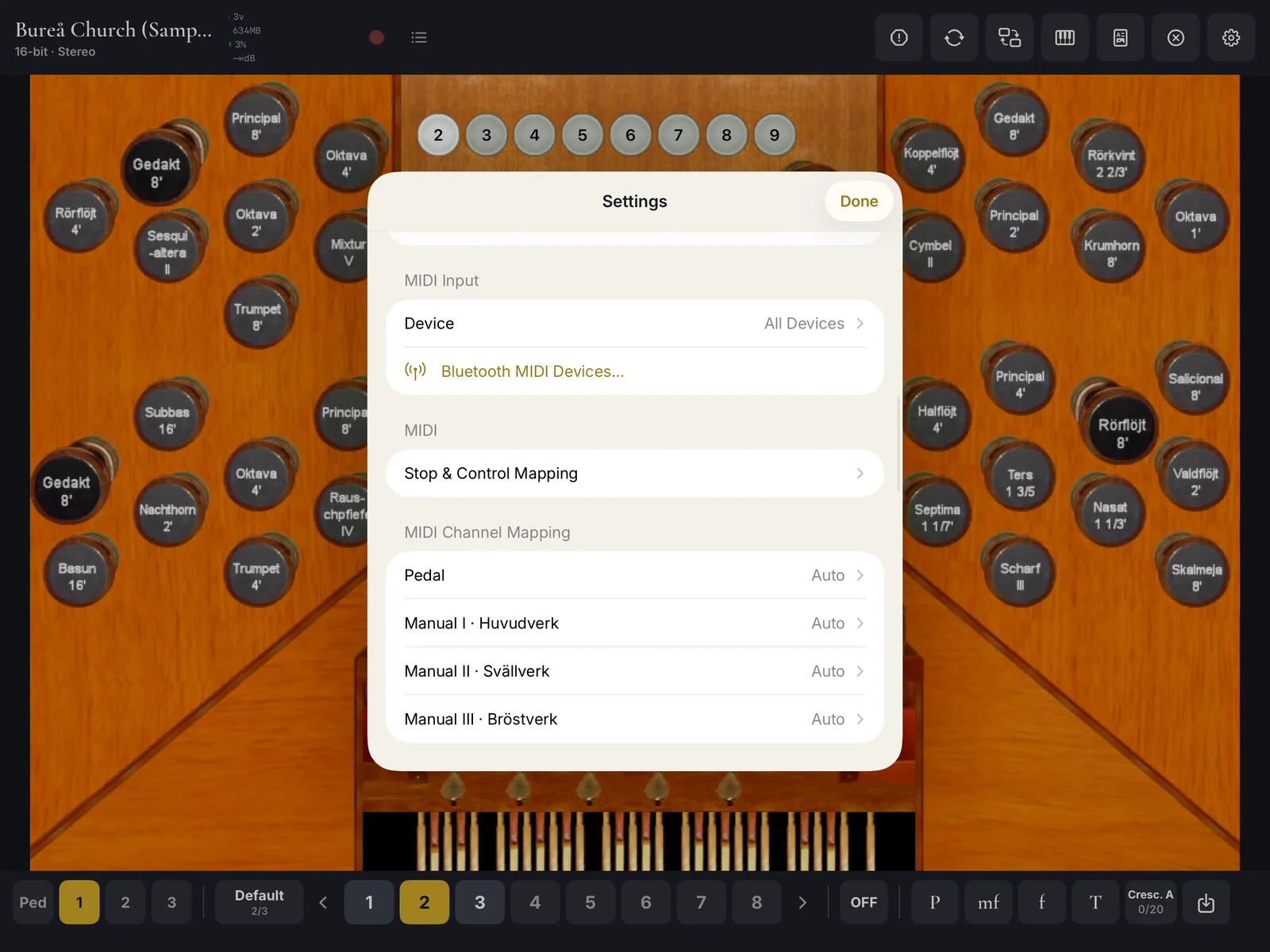
Plug in a class-compliant USB MIDI device, a keyboard, a pedalboard or a whole console, and Claviro Organ connects to it by itself. Bluetooth MIDI devices pair inside the app: Settings › MIDI Input › Bluetooth MIDI Devices… opens Apple's pairing sheet, and the device is connected when you close it.
The app listens to All Devices unless you choose one in Settings › MIDI Input › Device. Settings › Info › MIDI Devices lists what is connected.
On the console, a green keyboard icon at the left of the status strip shows that MIDI is connected. If a console's USB audio or MIDI goes quiet, for instance after the console was switched off and on, tap Reconnect. If a note sticks, tap Panic. Each time the app comes back to the front, it rebuilds its MIDI connections.
Which keyboard plays which division
The settings below appear in Settings once an organ is open. They are remembered for the app, not per organ.
With one keyboard, the routing buttons at the left of the combination bar, Ped, 1, 2 and so on, choose what it plays. Only 1 is lit at first, so your keyboard plays Manual I. Light 2 instead to play Manual II, or light several to play them together.
With a console that sends each keyboard on its own channel, Manual I on channel 1, Manual II on channel 2 and the pedal on channel 3, for example, go to Settings › MIDI Channel Mapping and give each division its channel: Auto, or Channel 1 to Channel 16. Then light the routing buttons of every division you play. Each keyboard plays its own division, and a channel that isn't in the map stays silent. A channel serves one division at a time; choosing it for another moves it there.
With every routing button dark, notes follow the channel map alone, and channels left on Auto play the manual of the same number.
Settings › Pedal › Pedal: lowest note only makes the pedal sound only the lowest note held. It helps when the pedal is played from a manual keyboard: a left-hand chord then gives a single bass note.
Settings › Transpose shifts each division up or down by semitones, up to two octaves either way, on every plan.
MIDI learn Cathedral
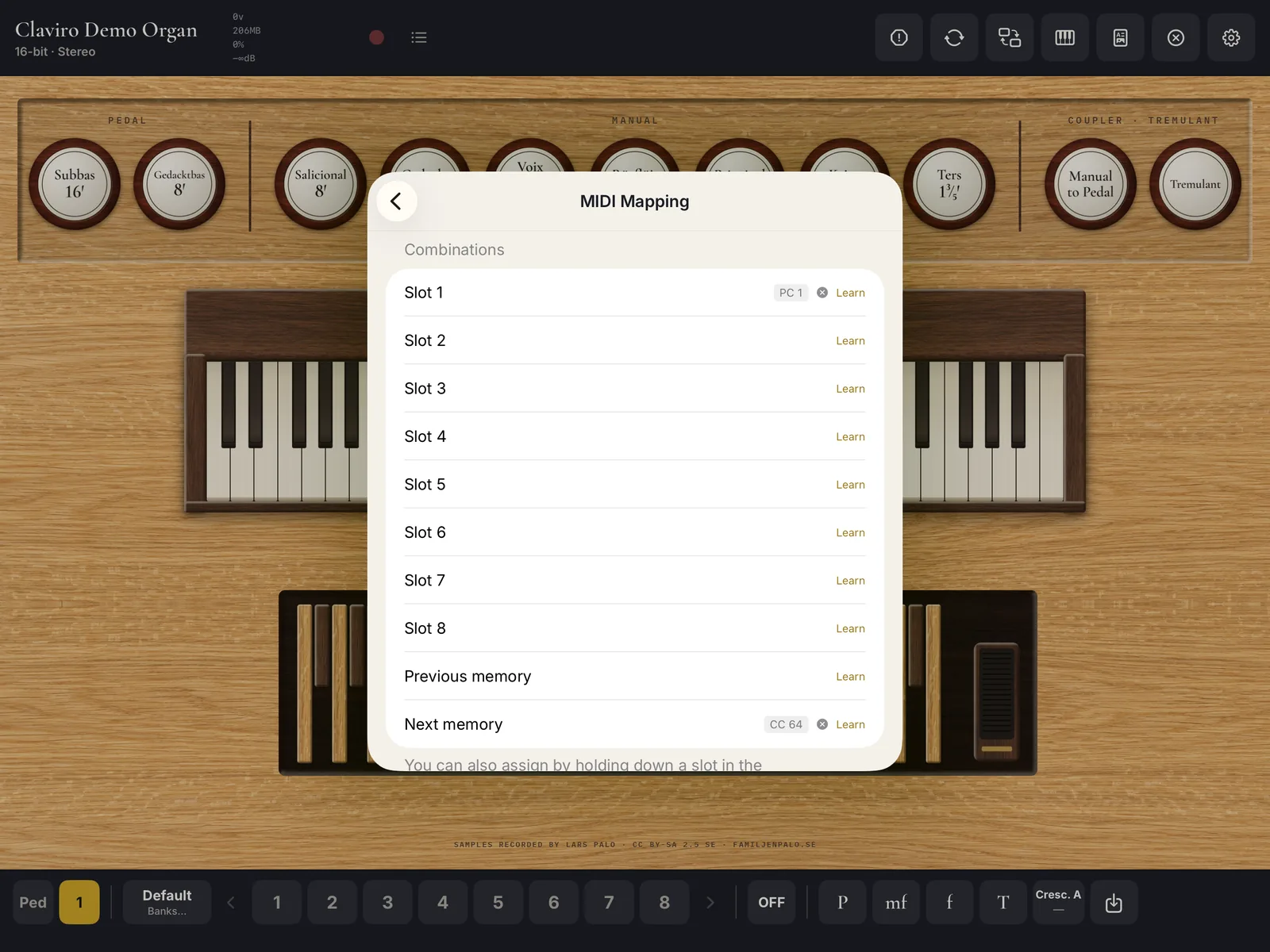
MIDI learn ties a button, a piston or a pedal on your console to a control in the app. Open an organ, then Settings › MIDI › Stop & Control Mapping. The MIDI Mapping screen lists:
- Combinations: Slot 1 to Slot 8, Previous memory and Next memory;
- Stops: every stop of this organ;
- Couplers and Tremulants;
- Crescendo;
- Manual Routing: the routing buttons.
Tap Learn on a row, then press and release the button on your console once. The row shows what it learned, such as “CC 20” or “PC 5”, with a button beside it to clear it. Cancel stops waiting.
From the console it's quicker: touch and hold a memory, an arrow or a routing button in the combination bar until it shows an orange outline, then press the button on your console.
Claviro Organ learns Control Change and Program Change messages, on any channel. Notes can't be learned, so keys stay keys.
A crescendo pedal Cathedral
To move the crescendo with an expression pedal, find Crescendo in MIDI Mapping and tap Learn, then move the pedal from rest to full and back. The app records the pedal's travel, shown as “CC 11 · 13–127”, for example, and keeps listening until the pedal has been still for three seconds. The crescendo then follows the pedal's whole range. It needs a pedal that sends Control Change; Program Change can't move a crescendo.
What is learned for one organ, and what for all
Learned stops belong to their organ and are removed with it. Everything else you learn, memories, memory steps, couplers, tremulants, the crescendo, routing buttons and page turns, is kept for the app and works on every organ. A memory button recalls that memory of whichever bank is open, so the same piston brings up a different registration in each bank, and a coupler learned on one organ answers to the same button on another.
On a plan without MIDI learn, what you learned before is kept and works again with Cathedral.
Music Stand Chapel
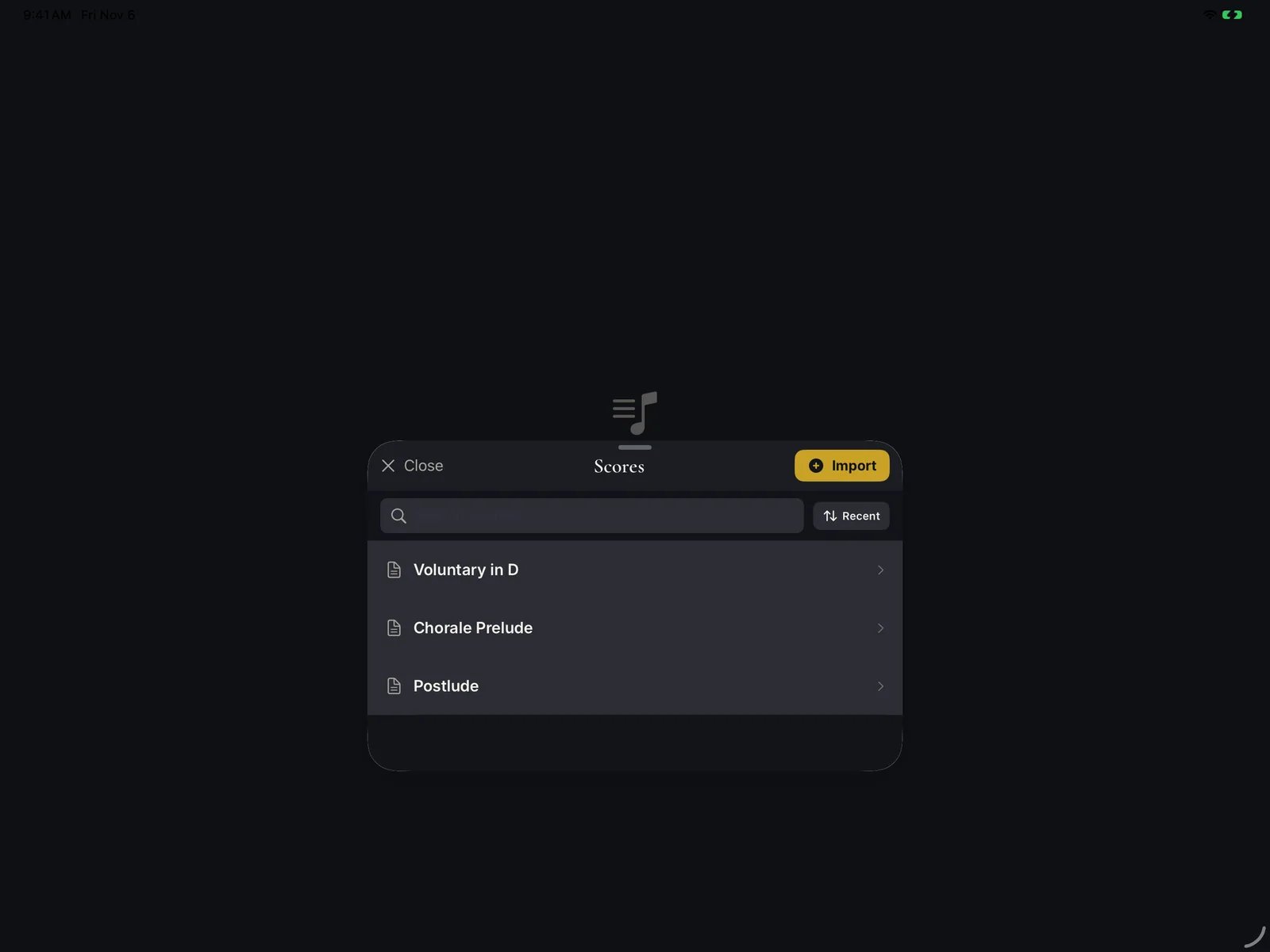
The Music Stand is a score reader inside the organ: your PDFs on the screen, with the combination bar under the music. Open it from Music Stand on Home or in the console's toolbar. Without an organ open, it is simply a score reader.
Adding scores
- In the library, Import (or Import PDF when it's empty) opens Files; choose one PDF or several.
- From forScore, Files or Mail, share a PDF and choose Claviro Organ. It is copied into the library and opened. This works on every plan; without Chapel, the score waits in the library.
Scores are copied into the app, where the Files app shows them under Claviro Organ › Scores. The original stays where it was.
The library, Scores, has a search field, a Sort menu with Recent, Last opened and Alphabetical, and on each score, by swiping or by touching and holding, Rename and Delete.
Reading and turning pages
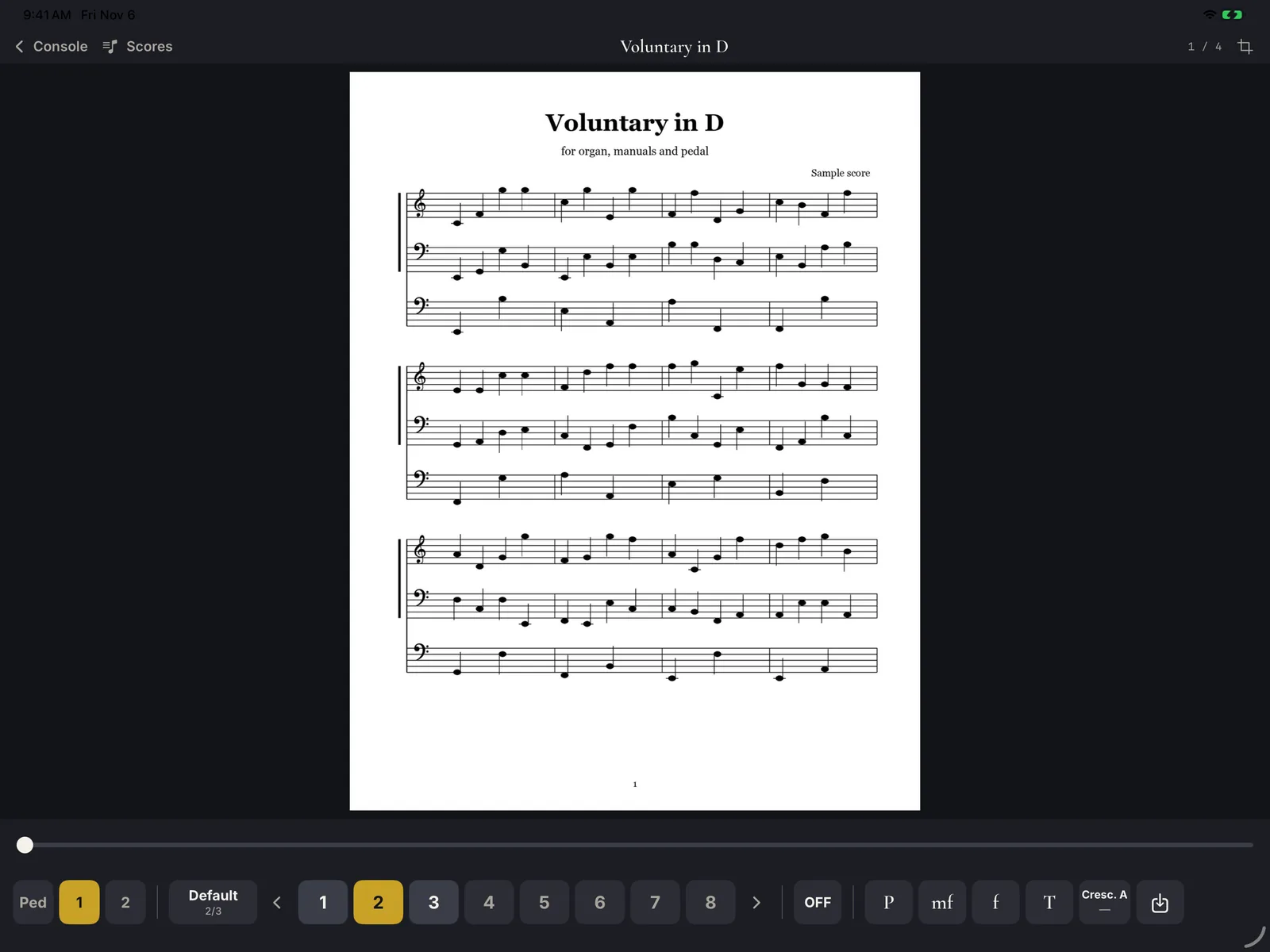
The Music Stand reopens the last score at the page you left. Swipe, or tap the right third of the page for the next page and the left third for the previous one; tap the middle to hide or show the top bar. Drag along the scrubber at the bottom to jump to a page.
The top bar holds Console to go back, Scores for the library, the score's name, the page number, and the crop button. Many PDFs carry wide margins: the crop button lets you drag a box around the music of a page, then Apply for this page, Apply to All for every page, or Remove Crop. Crops change only what you see; the PDF itself is never modified.
To turn pages without the sliding animation, turn off Settings › Music Stand › Page turn animation.
Registration while you read
With an organ open, the combination bar sits under the music and works exactly as on the console: banks, memories, the arrows, OFF and the pistons. Crescendo programs are edited from the console.
Turning pages with a pedal Cathedral
With an organ open, go to Settings › Music Stand, tap Pedal: next page, then press the pedal; “Press the pedal…” shows while the app waits. Do the same for Pedal: previous page if you have a second pedal. Set the pedal to momentary mode; Control Change is recommended. MIDI starts with the organ, which is why an organ must be open to assign a pedal.
Sound and settings
Where settings live
Settings is the gear at the top right of Home, or the Settings button in the console's toolbar. It is one scrolling page, in this order: Plan, Audio, Reverb, Engine, MIDI Input, the open organ's MIDI settings, Load Defaults, Organ Noises, Storage, Music Stand, Info and About. With an organ open, Close Organ & Load New at the end returns to Home. Done closes the page and applies a new buffer size or sample rate.
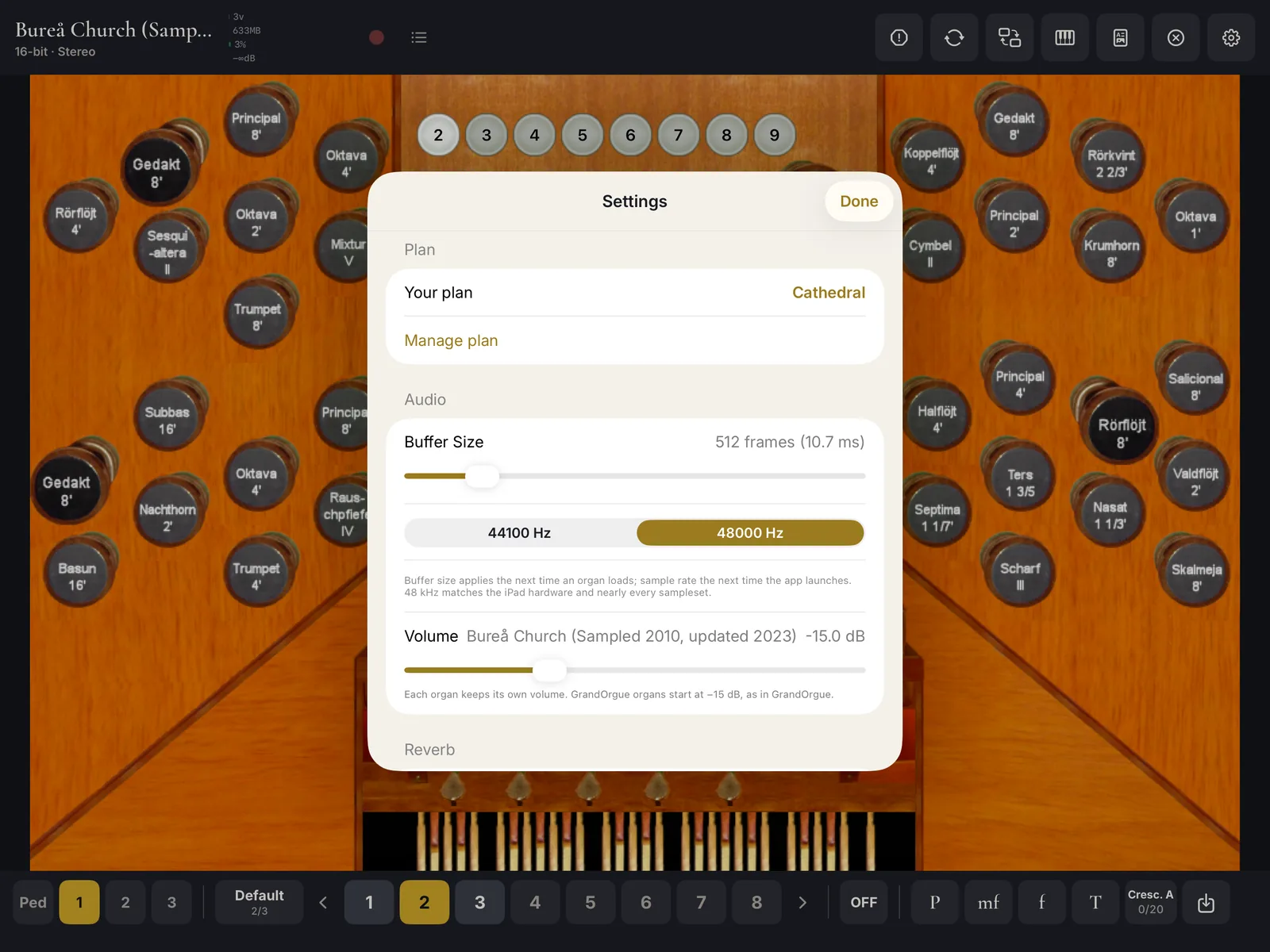
Audio
- Buffer Size
- From 256 to 2048 frames, 512 at first, with the delay it adds in milliseconds. A smaller buffer makes the organ answer the key sooner; a larger one gives the iPad more time for each block of sound, which protects a full organ from crackles. It applies the next time an organ loads.
- Sample Rate
- 44100 Hz or 48000 Hz, the default, which matches the iPad's hardware and nearly every sample set. It applies the next time the app starts.
- Volume
- The open organ's level, from −24 to +6 dB. Each organ keeps its own, because sample sets are recorded at very different levels. GrandOrgue organs start at −15 dB, as in GrandOrgue.
Reverb
Most sample sets already carry their church's acoustic in the recordings. The reverb adds a room around a drier set, or more space to taste.
- Preset
- Off, Bureå Church (intimate), York Minster (cathedral) Chapel, or Custom IR… Cathedral, which opens Files for an impulse response of your own.
- Wet/Dry Mix
- How much of the reverb you hear against the organ itself.
- Wet Gain
- The reverb's level, from −12 to +12 dB.
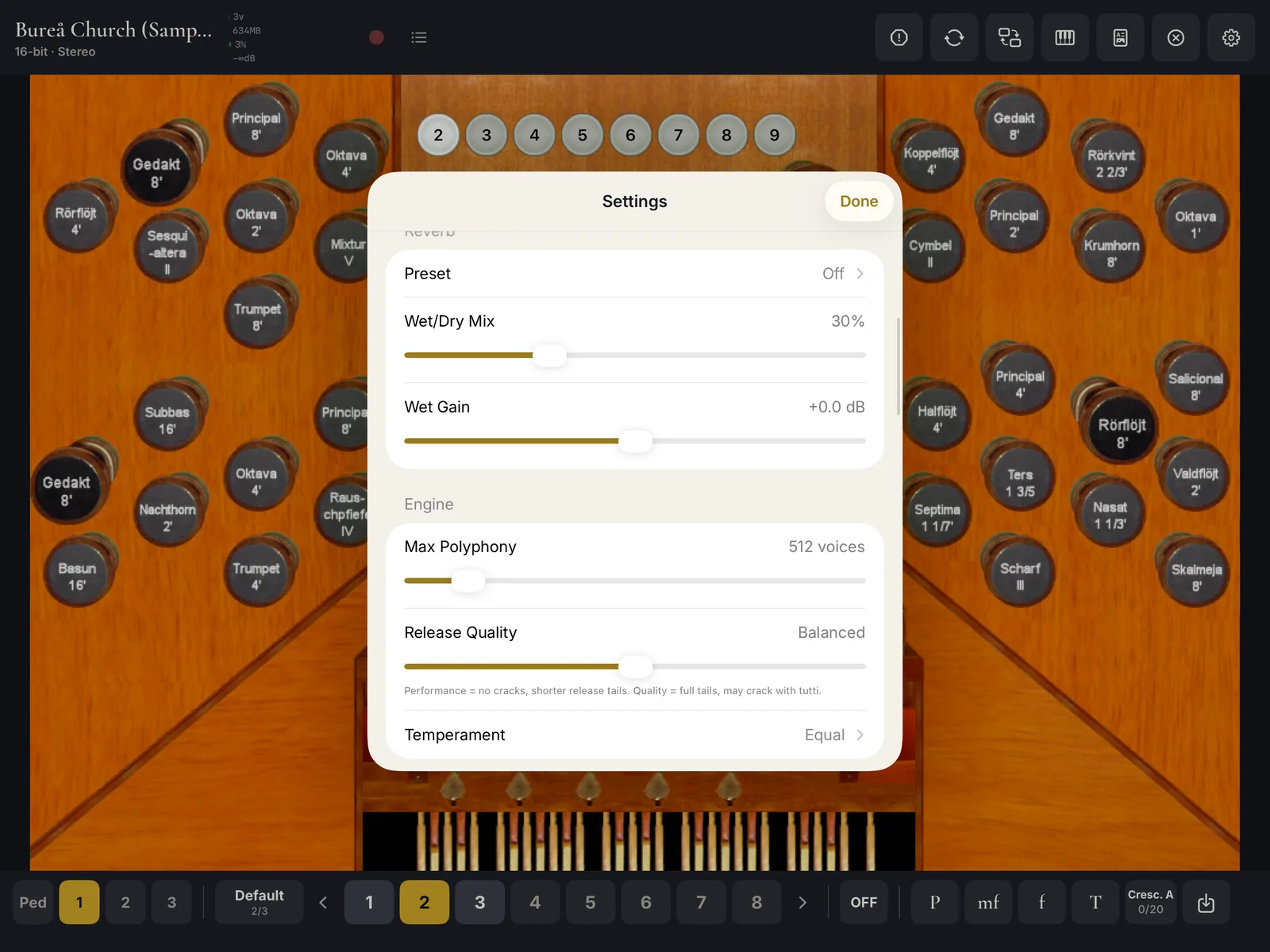
Engine
- Max Polyphony
- How many voices may sound at once, from 64 to 4,096; 512 at first. Each sounding pipe is a voice, and so is each release dying away, so a full chord on a large registration uses hundreds. Above about 3,000, a large tutti can crackle at small buffer sizes; raise Buffer Size if it does. Free sounds 50 voices and Chapel 150, whatever the setting.
- Release Quality
- From Performance through Balanced, the default, to Quality. Performance shortens release tails so that a tutti never cracks; Quality keeps the full tails, and may crack with tutti.
- Temperament
- With an organ open: Equal on every plan, and with Chapel Werckmeister III, Kirnberger III, Vallotti, Meantone 1/4, Young II and Pythagorean. Each organ keeps its own.
GrandOrgue organs speak up to a cent off pitch at random, as they do in GrandOrgue; Hauptwerk organs aren't affected.
Load settings for each organ
Load settings decide how an organ's samples are prepared, and so how much memory it takes. Reach them from Home (touch and hold an organ, or Load settings under CONTINUE), from Organs, or while playing, by tapping the organ's name and then Change load settings.
- Bit depth
- 16-bit takes half the memory. 32-bit float Cathedral only if the samples are.
- Channels
- Mono mixes left and right into half the memory. Stereo keeps the space.
- Release tail
- Full, 5 seconds, 3 seconds, 1 second or None. The release carries the church's decay after the pipe stops, and in a large building it lasts many seconds; shortening it saves memory.
- Attacks and releases
- All or First only. Some sets record several attacks and releases for each pipe; all of them give the full sound, the first alone saves memory.
A gold dot marks a setting that differs from your defaults, and an estimate shows the memory each stop will take and what is available. Reset to defaults clears the organ's own settings. Edit defaults…, also at Settings › Load Defaults › Edit load defaults, sets them for every organ without settings of its own: stereo, 16-bit, full release tails and all attacks, until you change them.
Changes apply the next time you open the organ; a change of bit depth or channels rebuilds its cache.
Storage
Settings › Storage lists every organ with the size of its samples and of its cache, each with Delete Cache. A deleted cache rebuilds by itself the next time the organ loads, which for a large organ takes minutes. Clear All Caches deletes them all. With Cathedral, Remove samples from organs with cache frees the samples of every organ whose cache is ready. An organ whose samples were removed keeps its cache: the cache is the organ now, so it can't be deleted or rebuilt.
What each organ keeps, and what is for the whole app
Each organ keeps its own combination banks and memories, crescendo programs, load settings, volume, temperament, the console pages shown, and learned stops.
For the whole app: the audio and engine settings, the reverb, the load defaults, the MIDI device, channel map, routing buttons, transposition and pedal mode, every other learned control, the organ noise settings, and the score library.
The safety limiter
A limiter on the output keeps a full organ from clipping, however many stops are drawn. The OUT meter shows it at work: orange while it holds the sound down, red when the mix would have clipped. If it turns red often, lower the organ's Volume in Settings › Audio.
Info and credits
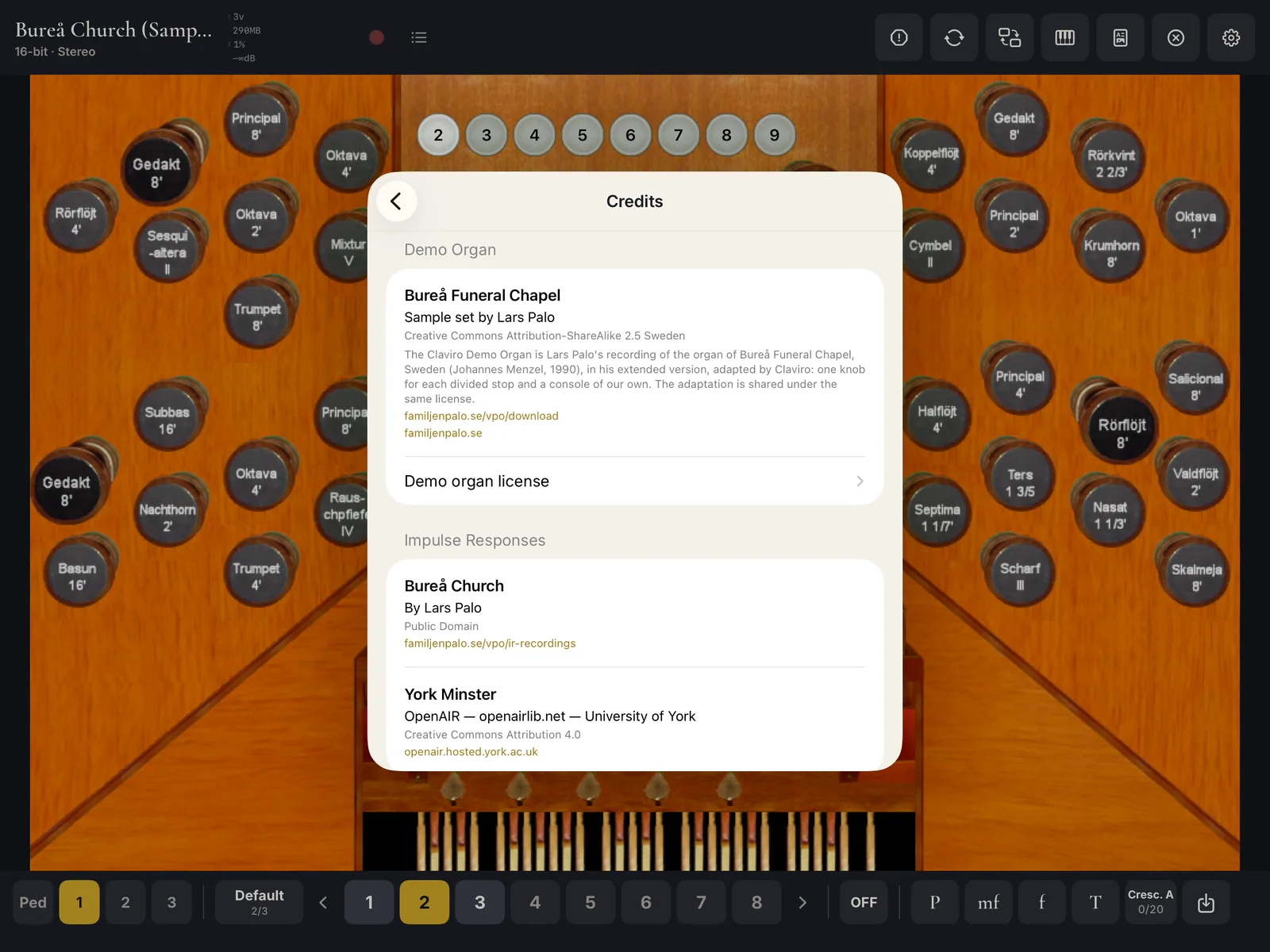
Settings › Info shows the open organ's manuals, stops and pipes, and the connected MIDI devices. Settings › About › Credits names the demo organ, the impulse responses, the fonts and the software Claviro Organ is built with, with their licenses.
Performance
A large organ asks a lot of an iPad. This chapter explains what the work is, shows what we measured on one iPad, and describes the settings that change it.
What a voice is
A voice is one pipe sounding. Every pipe of every drawn stop, under every key you hold, is a voice, and couplers add the pipes of the divisions they bring in. When you let go of a key, each pipe's release, the church's decay after it, stays a voice until it has died away. That is why a full chord on a large registration uses hundreds of voices, and a tutti on a large organ, with releases overlapping as you play, uses thousands.
The iPad computes the sound in short blocks. At the default Buffer Size of 512 frames at 48 kHz, each block lasts 10.7 ms, and the iPad has that long to finish the next one. A block it doesn't finish in time is a late block, and a late block is what you hear as a crack.
Measured on an iPad Pro
These figures come from Claviro Organ's own diagnostic log, on one iPad, playing the Hauptwerk version of each organ. In every session the iPad finished every block in time.
| Organ | Cache | Most stops drawn | Peak voices | Slowest block, of 10.7 ms | Late blocks | Played for |
|---|---|---|---|---|---|---|
| Szczecinek | 4.7 GB | 34 | 2,451 | 6.7 ms | 0 | 23 min |
| Szczecinek | 4.7 GB | 35 | 2,312 | 5.6 ms | 0 | 11 min |
| Giubiasco | 3.9 GB | 22 | 1,570 | 4.3 ms | 0 | 6 min |
| Długa Kościelna, one sustain sample | 4.3 GB | 22 | 1,195 | 4.3 ms | 0 | 9 min |
Even at 2,451 voices, the slowest block took 6.7 ms of its 10.7: about a third of the time to spare. Voices beyond the default 512 need Max Polyphony raised, and organs of this size need Cathedral, which leaves the number of voices to you.
Before and after 1.1
Before 1.1, a large organ could crack in a tutti. Version 1.1 changes how the engine feeds the sound, and the cracks are gone. On the same iPad, Giubiasco went from 11 late blocks at 639 voices, the slowest taking 39.4 ms, to none at 1,570; Szczecinek, which cracked during 14 seconds of tutti at 1,100 to 1,640 voices, now reaches 2,451 without one.
What affects performance
- Max Polyphony
- The ceiling on voices, in Settings › Engine. When it is reached, the app makes room by ending the oldest release first, the sound you are least likely to miss, then the oldest note fading out; with nothing left to end, a new pipe doesn't speak. Set it high enough for your fullest registration, and no higher than your iPad can compute in time.
- Release Quality
- Also in Engine. As the voices fill up toward the ceiling, the app shortens releases to keep up. Performance starts doing so early, when the voices are well under the ceiling; Quality waits until they are nearly at it, keeping the full tails for longer.
- Buffer Size
- In Settings › Audio, and the one trade-off you feel under your fingers. A buffer is also a delay between key and sound: 256 frames is 5.3 ms at 48 kHz, 512 is 10.7 ms, 1024 is 21.3 ms. A smaller buffer answers sooner but gives the iPad less time for each block; a larger one gives it more time, at the cost of a later answer. The app shows the delay beside the setting.
- Stops and couplers drawn
- Each drawn stop adds a voice for every key held, and each coupler adds the stops of the division it brings in. The full organ with every coupler is the heaviest thing you can ask for.
- Release tail
- In the organ's Load settings. Shorter tails save memory, and since a release is a voice until it ends, they also leave fewer voices sounding at once.
- Reverb
- In Settings › Reverb. The reverb works on the whole mix, so it takes the same share of processing whether one pipe sounds or two thousand. Off gives that share back, and many sets already carry their church's acoustic.
- Mono and 16-bit
- These decide memory, not processing. They choose whether an organ fits whole in memory (see Stereo or mono, 16-bit or 32-bit), not how many voices the iPad can sound in time.
Large organs on iPad
- Import with a cache that fits whole. If the import sheet marks stereo stop by stop, choose Mono; then any registration plays.
- Give the first load time to finish. The cache is built once, and later loads are quicker.
- Raise Max Polyphony for the organ's full registration. The sessions above peaked at about 2,500 voices; above about 3,000, a large tutti can crackle at small buffer sizes.
- Keep Buffer Size at 512 frames unless you have reason to change it. Raise it if a tutti cracks. Lower it only if you need a quicker answer, and then play your fullest registration to check.
- If a tutti still cracks, move Release Quality toward Performance, shorten the Release tail, or turn the reverb Off.
- Close other apps, which frees memory for the organ.
- Watch the meters at the top of the console: the voices meter turns red past 80 percent of the ceiling, and the CPU meter shows how hard the iPad is working.
Other iPads
So far we have measured only the iPad above, and we will add other models here as we test them. Two things decide how an organ plays on yours. Memory decides which organs fit whole, and the import sheet tells you that for your iPad, organ by organ. Processing power decides how many voices it can sound at once without a late block. As guidance rather than measurement: we recommend 8 GB of memory for large sample sets, and an iPad with less still plays the demo organ and smaller sets, with Mono halving what a large one needs.
Troubleshooting
Symptoms and fixes
| What happens | What to do |
|---|---|
| No sound when I play. | Draw a stop first: as on a pipe organ, the keys are silent until one is. For a MIDI keyboard, check that its routing button in the combination bar is lit (1 at first). Check the organ's Volume in Settings › Audio, and the iPad's own volume and output. |
| My MIDI keyboard isn't detected. | Check its cable and power, then tap Reconnect on the console. Settings › Info › MIDI Devices should list it; “None connected” means the iPad doesn't see it. Make sure Settings › MIDI Input › Device is All Devices or the keyboard's name. Bluetooth devices must first be paired, in Bluetooth MIDI Devices… |
| A keyboard plays the wrong division, two at once, or nothing. | Check the routing buttons in the combination bar and Settings › MIDI Channel Mapping. Once one channel is mapped, a channel left out of the map is silent. See Which keyboard plays which division. |
| A note keeps sounding. | Tap Panic. |
| The console's sound or MIDI stopped after it was switched off and on. | Tap Reconnect: it restarts audio and MIDI as a relaunch would. |
| Crackles at full organ. | Raise Buffer Size, which applies the next time the organ loads. Lower Max Polyphony, move Release Quality toward Performance, or turn the reverb Off. If the organ loads stop by stop, Mono lets it fit whole. The CPU and voices meters show what is running short. See Performance. |
| “Not enough memory” when I draw stops. | The organ doesn't fit whole in this iPad's memory, and the alert names the stops it couldn't draw. Push in other stops, or set Mono in the organ's Load settings; shorter release tails and First only save memory too. Closing other apps can help. |
| The import sheet says “stop by stop”. | Choose Mono if it fits whole; the organ will then play any registration. Otherwise it still plays, loading each stop as you draw it. |
| A copy-protected Hauptwerk set won't open. | Claviro Organ can't open encrypted sets; they are licensed to Hauptwerk itself. Free and unencrypted Hauptwerk sets, and GrandOrgue sets, play. |
| “No organ found”. | The folder you chose holds no organ definition the app can read. Choose the set's own folder, the one with the .organ file, or with the OrganDefinitions folder for Hauptwerk. |
| The archive can't be imported. | An archive split into parts, protected with a password, or in .7z: unpack it on a computer and import the folder. A damaged or incomplete one: download it again. |
| Not enough space. | Unpacking needs roughly twice the package's size. Free some space, or choose Mono, which halves the cache. With Cathedral, leave the samples on a drive. |
| Some pipes are silent, or the sheet says sample files are missing. | The set is incomplete, or the package is a patch for an organ that isn't on this iPad. Import the complete set first, then the patch, which the sheet offers to add to it. |
| An organ shows a gold lock. | It is above your plan; nothing has been deleted. See When something is above your plan. |
| Notes drop out in big chords on Free or Chapel. | The plan's voice limit is reached, and the OUT meter shows “50 max” or “150 max”. See Plans. |
| “Drive not responding”. | Unplug the drive, or its hub, and plug it in again with the iPad unlocked. Once its cache is built, the organ plays without the drive; the first time, the drive must be there. After a restart, iPadOS may not enable a hub until the iPad is unlocked. |
| “The organ could not be loaded”. | Check that the organ's folder is complete, then try Organs › the organ › Manage › Rebuild Cache. If that fails, import the set again. |
| A download fails. | Use a link that starts with https:// and leads to the file itself, not to a web page. Check the connection and try again. |
Known limitations
Claviro Organ plays GrandOrgue organs and unencrypted Hauptwerk organs as their builders defined them. A few things aren't there yet, and we list them so you know before you import an organ or subscribe.
- Copy-protected (encrypted) Hauptwerk sets can't be opened.
- Archives split into parts, protected with a password, or in
.7zhave to be unpacked on a computer first. - Hauptwerk pipes play their first attack: sets that record several attacks per note sound with the first. GrandOrgue sets use all their attacks, as GrandOrgue does.
- Sets recorded from several places in the church play the first perspective listed.
- Swell boxes change the volume only.
- Divisional pistons aren't supported yet. A set's divisional piston, or a GrandOrgue divisional coupler, lights when you press it but changes no stop. The exception is a Hauptwerk set's fixed divisionals and divisional cancels, which work when its console draws them. Your memories on the combination bar are general, across the whole organ. Reversible pistons, the organ's general combinations and its crescendo pedals all work.
- The drawstop and key-action noises of Hauptwerk sets don't play yet; their blower and ambience do.
- The level of a release is set when the cache is built, so on a few Hauptwerk sets with swelling loops a release can sound slightly louder or softer than the note it ends.
- Learned couplers and tremulants are kept for the app, not per organ.
- An organ whose cache doesn't fit in memory loads stop by stop, and a full tutti may be refused. Mono halves the cache and usually lets it load whole.
Getting help
Write to support@claviromusic.com, in English or Spanish. Tell us the organ and its version, your iPad model, and what the app said; a screenshot helps. The support page answers the questions we hear most.
Credits
The Claviro Demo Organ is Lars Palo's sample set of the organ of Bureå Funeral Chapel, Sweden (Johannes Menzel Orgelbyggeri AB, 1990), in his extended version, adapted by Claviro: one knob for each divided stop and a console of our own. Lars Palo's set and our adaptation are shared under the Creative Commons Attribution-ShareAlike 2.5 Sweden license (CC BY-SA 2.5). Lars Palo's sample sets are free to download at familjenpalo.se/vpo/download.
The reverbs use the Bureå Church impulse response by Lars Palo, in the public domain, and the York Minster impulse response from OpenAIR, University of York, under Creative Commons Attribution 4.0.
The app is set in Inter, Cormorant Garamond and IBM Plex Mono, under the SIL Open Font License 1.1. It reads WavPack samples with WavPack (BSD 3-Clause license), and unpacks RAR archives with UnRAR, used for that alone.
Piotr Grabowski supports his sample sets in Hauptwerk and GrandOrgue; support for playing them in Claviro Organ comes from us.
This guide describes Claviro Organ 1.1 for iPad. Last updated November 2026.
Hauptwerk is a trademark of Milan Digital Audio LLC. GrandOrgue is an open-source project of its contributors. Claviro Organ is independent and is not affiliated with or endorsed by either.